
naya
premium

Server Shop Docs

Items are what give your server’s coins meaning ♡ This page covers how to create items, customize them, manage settings like stock/visibility, and add custom actions that run when a member uses /consume.
Creating an Item Item Customizations Item Settings Custom Actions
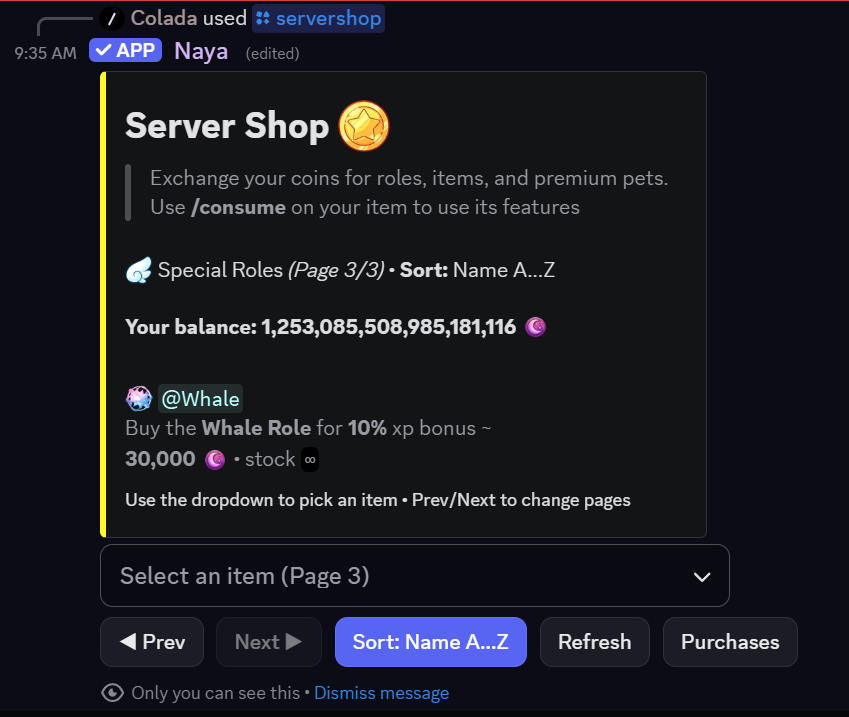
Server shop preview

Where you manage items

You’ll build items inside your server’s shop editor (and members will browse it with /servershop). Purchased items show up in the member’s /inventory, and consumables can be used with /consume.

Member commands
  • /servershop — browse items and purchase.
  • /inventory — view what you own.
  • /consume — use a consumable item (runs its actions).
Admin commands
  • /server-currency — open shop + economy settings in one place.
  • From there, you can create/edit items, set stock, enable/disable, and adjust costs.
Cozy shop tip: a small selection of fun items feels better than a huge list. You can always add “seasonal” items later ♡

Creating an Item

item key basics + role items vs custom items

1) Choose a unique item key (important)

Creating an item requires a unique item key. This key is the item’s permanent identity. It cannot be changed later.

  • Keys are unique — no two items can share the same key.
  • Keys can’t be renamed — if you want a different key, you’ll need to remove the item and recreate it.
  • Pick keys that stay clean over time (example: daily_cookie, vip_role, rose_bundle).

2) Pick the item type

There are two common patterns: role shop items and custom shop items.

  • Role item — buying grants a role automatically.
  • Custom item — can be a “trophy” in inventory, or a consumable that runs actions when used.
Example: Role shop item (simple)

Creating role shop items only requires the role ID — everything else is optional. When a member purchases it, the role is given automatically.

Suggested setup
  • Item key: vip_role
  • Role ID: (your VIP role)
  • Name (optional): “VIP Access”
  • Emoji (optional):
  • Description (optional): “Unlocks VIP channels and perks.”
When it’s perfect
  • Perks roles: VIP, event pings, game pings, “supporter”, etc.
  • Cosmetic roles: color roles, title roles, seasonal badges.
  • One-click rewards with no extra steps for members.
Example: Custom item (trophy)

Custom shop items can simply sit in inventories as collectibles — no actions needed.

Suggested setup
  • Item key: starlit_trophy
  • Name: “Starlit Trophy”
  • Emoji: 🏆
  • Description: “A tiny souvenir from the server.”
  • Enabled: yes (or no, if you only give it out as a prize)
When it’s perfect
  • Event prizes, seasonal collectibles, “membership cards”.
  • Fun flex items that feel meaningful even without effects.
If you’re unsure: start with 1 role item + 1 simple collectible. You can always add action items later ♡

Item Customizations

name, description, emoji, and making items feel “real”

Optional visuals (recommended)

Items can optionally have a custom name, description, and emoji. These help members understand what they’re buying at a glance.

  • Name — short and clear (example: “Daily Cookie”, “VIP Access”, “Rose Bundle”).
  • Description — one or two sentences is perfect.
  • Emoji — makes the shop feel cute and readable.

Good description patterns

  • What it is: “A small treat you can use once per day.”
  • What it does: “Using it gives a small coin bonus.”
  • Any limits: “One use per day.” / “Limited stock.”
Simple reads best. Items shouldn’t feel like a rulebook.
Example: Cute “daily” item text
Item
  • Key: daily_cookie
  • Name: “Daily Cookie”
  • Emoji: 🍪
  • Description: “A tiny treat. Use it once a day for a small reward.”
Why it works
  • Members understand it instantly.
  • It feels friendly without being “too themed”.
  • Perfect for a first custom action item.

Item Settings

enable/disable, stock, and when items appear in the shop

Enable / Disable (visibility control)

Items can be enabled or disabled in the server shop. This is great for “prize-only” items.

  • Enabled — members can see and buy it in /servershop.
  • Disabled — it won’t appear for purchase, but you can still give it out as rewards.
Useful if you want the item to come only from autoresponders, give, or chests.

Stock (limited vs unlimited)

Stock lets you control how many total purchases are available. You can set it, adjust it later, or remove it.

  • Limited stock — perfect for seasonal items, event prizes, or “first come” drops.
  • Unlimited stock — best for everyday items.
  • If stock hits zero, the item becomes unavailable until you restock it.
Example: Seasonal item using stock
Setup
  • Key: winter_badge
  • Name: “Winter Badge”
  • Emoji: ❄️
  • Stock: 50
  • Enabled: yes (during the season)
Flow
  • Members buy until stock runs out.
  • When the season ends, you can disable it to archive it.
  • You can bring it back next year by re-enabling and restocking.
You don’t have to keep everything buyable. Prize-only items feel special ♡

Custom Actions

turn items into “little commands” that run on /consume

What are custom actions?

Custom shop items are a little more advanced: they can be regular trophies, or they can have custom actions attached. When a member uses /consume on the item, those actions trigger.

  • Great for “daily reward” items, bundles, mystery boxes, and fun utility items.
  • Actions let items feel interactive (not just cosmetic).
  • You can mix “small” actions (tiny coin or item rewards) with “fun” actions (messages, roles, etc.).
  • You can also add delays which actions will trigger first in order (up to 30 seconds).

Common action ideas

  • Modal — user responds to your questions and i send their answers to your channel (great for surveys).
  • Coins or XP — give a fixed or random amounts.
  • Items — grant another item(s) (it can be gacha lottery with weighted choices which items).
  • Roles — add or remove a role (temporary role or permanent).
  • Messages — send a friendly DM or a neat confirmation in chat (ephemeral or not).
  • Pet — gives the user a pet.
Tip: You can set rewards that need username or uid (such as a top up prize or an in game prize) with a modal.send action that asks for this and sends to a private channel of your choice with a ping. Skips having to dm the member ♡

How to configure custom actions

To configure custom actions, open /server-currencyServer Shop → select your item → Manage ItemCustom Actions.

  • Use /consume to trigger actions (needed for anything that requires an interaction, like ephemeral messages and modals).
  • Each action is a small JSON object. Copy an example, then tweak it and paste.
  • Some actions support delay (run later) and/or duration (temporary role/nickname).
If modal.send is present, it will be placed first. It always runs immediately (no delay).

Available types & options

  • msg.dm — DM the buyer (text?, embed?, delay_s?)
  • msg.channel — post in a channel or “here” (channel|channel_id, text?, embed?, delay_s?)
  • msg.reply — reply in-channel to the command (text, delay_s?)
  • msg.ephemeral — instant private confirmation (text) (no delay)
  • nick.set — temporary nickname (template_string, duration_s?, delay_s?)
  • role.give / role.remove — role grant/remove (role_id, duration_s? for give, delay_s?)
  • timeout.user — timeout/mute (seconds, reason?, delay_s?)
  • channel.create — create a channel (name, category?, private?, delay_s?)
  • thread.create — open a thread off the channel (name, private?, delay_s?)
  • embed.log — post a staff log embed (channel|channel_id, title, description, color, delay_s?)
  • currency.give — add/remove server currency (amount OR choices[], note?, delay_s?)
  • inventory.give — give inventory items / lootbox (key+qty OR choices[], note?, delay_s?)
  • xp.give — grant XP / weighted XP drops (amount OR choices[], note?, delay_s?)
  • pet.give — assign/replace user's pet (key OR choices[], note?) (no qty)
  • modal.send — ask up to 5 questions via popup form (title, questions[1..5], channel|channel_id, msg?) (no delay; always runs first if present)
Notes: delay_s causes me to wait (up to 30s) before triggering that action. channel can be “here” or a numeric channel ID (you can right click on a channel and click copy id to get this). role_id can be a role ID (you can get this by right clicking the role and copying the role id in discord, press here to see a sample).
Quick samples (copy/paste)

Copy one JSON object into JSON Params and adjust values.

1) DM the user (msg.dm)
{
  "op": "msg.dm",
  "text": "You opened a Celestial Crate! ✨",
  "embed": {
    "title": "🎁 Celestial Crate",
    "description": "Enjoy your reward!",
    "color": 3447003
  },
  "delay_s": 3
}
2) Post in a channel (msg.channel)
{
  "op": "msg.channel",
  "channel": "here",
  "text": "{user} just opened a crate!",
  "embed": {
    "title": "🎉 Congrats!",
    "description": "Loot drop incoming!",
    "color": 15844367
  },
  "delay_s": 4
}
2b) Reply to the command message (msg.reply)
{
  "op": "msg.reply",
  "text": "Thank you for your purchase!",
  "delay_s": 0
}
2c) Instant ephemeral notice (msg.ephemeral)
{
  "op": "msg.ephemeral",
  "text": "Rewards delivered. Check your DMs ✨"
}
3) Set a temporary nickname (nick.set)
{
  "op": "nick.set",
  "template_string": "{name} the Brave",
  "duration_s": 3600,
  "delay_s": 2
}
4) Give a temporary role (role.give)
{
  "op": "role.give",
  "role_id": 777000111222333444,
  "duration_s": 604800,
  "delay_s": 5
}
4b) Remove a role (role.remove)
{
  "op": "role.remove",
  "role_id": 777000111222333444,
  "delay_s": 2
}
4c) Timeout the user (timeout.user)
{
  "op": "timeout.user",
  "seconds": 3600,
  "reason": "Cooldown period after item use",
  "delay_s": 0
}
5) Create a private channel (channel.create)
{
  "op": "channel.create",
  "name": "{user}-lounge",
  "category": 1424447177513635912,
  "private": true,
  "delay_s": 6
}
5b) Create a thread (thread.create)
{
  "op": "thread.create",
  "name": "{user}-support-room",
  "private": false,
  "delay_s": 2
}
5c) Log to a staff channel (embed.log)
{
  "op": "embed.log",
  "channel": 123456789012345678,
  "title": "Purchase Logged",
  "description": "{user} bought {item}",
  "color": 15158332,
  "delay_s": 0
}
7) Give currency (currency.give) — fixed
{
  "op": "currency.give",
  "amount": 5000,
  "note": "💰 {user} just won **5,000** coins!",
  "delay_s": 0
}
7b) Weighted / gacha currency (currency.give)
{
  "op": "currency.give",
  "choices": [
    {
      "amount": 100000,
      "weight": 1,
      "note": "JACKPOT 💎 {user} just hit 100k!!"
    },
    {
      "amount": 2500,
      "weight": 5,
      "note": "{user} found 2,500 coins."
    },
    {
      "amount": 500,
      "weight": 20,
      "note": "{user} got 500 coins!"
    }
  ],
  "delay_s": 0
}
8) Give an inventory item (inventory.give) — fixed
{
  "op": "inventory.give",
  "key": "GoldenTicket",
  "qty": 1,
  "note": "🎟 {user} received a **Golden Ticket**!",
  "delay_s": 0
}
8b) Lootbox-style inventory (inventory.give)
{
  "op": "inventory.give",
  "choices": [
    {
      "key": "GoldenTicket",
      "qty": 1,
      "weight": 1,
      "note": "🌟 LEGENDARY DROP for {user}: Golden Ticket!"
    },
    {
      "key": "UltraSword",
      "qty": 1,
      "weight": 2,
      "note": "⚔ {user} pulled an Ultra Sword!"
    },
    {
      "key": "TrashBag",
      "qty": 5,
      "weight": 8,
      "note": "🗑 pity pull for {user} (5× TrashBag)"
    }
  ],
  "delay_s": 0
}
9) Give XP (xp.give) — fixed
{
  "op": "xp.give",
  "amount": 250,
  "note": "✨ {user} gained **250 XP**!",
  "delay_s": 0
}
9b) Weighted XP drop (xp.give)
{
  "op": "xp.give",
  "choices": [
    {
      "amount": 5000,
      "weight": 1,
      "note": "🔥 HUGE XP DROP for {user}: +5,000 XP!!"
    },
    {
      "amount": 500,
      "weight": 5,
      "note": "{user} gained 500 XP!"
    },
    {
      "amount": 100,
      "weight": 20,
      "note": "{user} gained 100 XP!"
    }
  ],
  "delay_s": 0
}
10) Give/replace pet (pet.give) — fixed
{
  "op": "pet.give",
  "key": "dragonling",
  "note": "🐉 {user} just bonded with a Dragonling companion!"
}
10b) Weighted pet drop (pet.give)
{
  "op": "pet.give",
  "choices": [
    {
      "key": "phoenix",
      "weight": 1,
      "note": "🔥 A PHOENIX has chosen {user}!"
    },
    {
      "key": "slime-bud",
      "weight": 6,
      "note": "🪱 {user} adopted a Slime Bud :3"
    }
  ]
}
6) Modal survey (modal.send) — runs first
{
  "op": "modal.send",
  "title": "Quick Survey",
  "questions": [
    "Why did you buy this?",
    "Favorite character?",
    "Any suggestions?"
  ],
  "channel": "here",
  "msg": "@Staff New response received!"
}
We’ll proceed to give multiple examples below ♡
Example: “Daily Cookie” (coins + tiny flavor message)
Item identity
  • Key: daily_cookie (can’t be renamed later)
  • Name: “Daily Cookie”
  • Emoji: 🍪
  • Description: “Use once per day for a small reward.”
  • Tip: Add a cooldown so it feels like a daily.
Action idea
  • Give coins: random small amount (example: 25–50)
  • Send message: “you munch the cookie… cozy bonus ♡”
  • Optional: add a tiny chance for a bonus item
Example: “Rose Bundle” (one item gives multiple items)
Item identity
  • Key: rose_bundle
  • Name: “Rose Bundle”
  • Emoji: 🌹
  • Description: “A small bundle of goodies.”
Action idea
  • Give item: rose × 3
  • Give item: sticker_pack × 1
  • Message: confirm what they received
Example: “Event Pass” (disabled in shop, prize-only)
Item identity
  • Key: event_pass
  • Name: “Event Pass”
  • Emoji: 🎟️
  • Enabled in shop: no (so members can’t buy it)
How it’s used
  • Staff gives it out via prizes (events, chests, autoresponders, etc.).
  • Consuming it can grant a temporary role or a special item.
  • Feels exclusive because it isn’t always purchasable.
Best beginner action item: one small reward + one cute confirmation message. That’s it ♡