Naya - Docs
naya
guide overview

Naya Docs

Use these docs as a setup manual for Naya. Most modules are designed to be configured in 5 to 15 minutes, and each guide focuses on the choices an admin needs to make before turning a feature on.

setup focused admin friendly self service

How to use these docs

Open a module from the left menu, then use the section links for setup, commands, limits, and recommendations. If you are configuring Naya for the first time, read the setup section first and leave advanced options at their defaults until the feature is working.

Fast setup

Most modules only need a channel, a few basic settings, and a posted panel. You can refine the details later.

Useful defaults

Naya is designed so the default settings are reasonable. Change values when you have a specific server need.

Recommended setup order

  1. Start with Main Settings so access rules and safety controls are clear.
  2. Set up Server Currency if your server wants coins, shop items, chests, or item rewards.
  3. Add Leveling, Pets, Garden, or Guildboard as optional engagement modules.
  4. Configure Tickets and Applications if staff need private workflows.
  5. Use Autoresponders, Stickies, and Embeds to reduce repeated questions.

Main Settings

Use /main-settings when you need server-wide command access, safety controls, or prefix behavior. Most feature setup should happen in the dashboard, but Main Settings is still useful for deciding who can manage Naya.

Access control

Restrict sensitive tools to the server owner, admins, selected roles, or selected users. This is the first place to check if someone cannot access a management workflow. This includes access to commands such as /clearleaderboard, /give, /set and /remove, and also all panel editor commands.

Safety controls

Use blacklist and safety options for members who should not use custom rank card visuals, profile fields, or user-uploaded custom hug and bonk image sets.

Permissions

Naya can be set up with selected permissions, but giving her Administrator is the easiest option if you trust the bot and want every module to work without channel-by-channel troubleshooting. If you do not use Administrator, grant the permissions below in the channels where Naya needs to operate.

Total permissions for all features
Manage RolesNeeded for role rewards, shop role items, booster roles, role menus, verification roles, giveaway reward roles, and role removal actions. Naya's role must be above every role she gives, removes, edits, or creates. Manage ChannelsNeeded for tickets, private channels, custom item actions that create channels, and channel-based automation. Manage NicknamesNeeded for nickname custom item action. Manage WebhooksNeeded for webhook-style messages in modules such as embeds, stickies, welcome messages, tickets, or other polished posts. View ChannelsNeeded so Naya can see setup channels, panels, logs, ticket channels, application channels, and module channels. Moderate MembersNeeded for timeout custom item action. Send MessagesNeeded for panels, replies, logs, announcements, autoresponders, and most command responses. Send Messages in ThreadsNeeded for ticket threads, event threads, co-op threads, and any thread-based workflow. Create Public ThreadsNeeded when a module creates public threads for discussion, events, co-op, or other server workflows. Create Private ThreadsNeeded when a module creates private thread workflows. Manage ThreadsNeeded to update, archive, rename, lock, or manage thread-based workflows. Embed LinksNeeded for panels, embeds, logs, cards, previews, tickets, applications, giveaways, rank cards, and most styled output. Attach FilesNeeded for rank cards, generated images, transcripts, attachments, and uploaded files. Read Message HistoryNeeded when Naya has to inspect previous messages such as for generating ticket transcripts. Add ReactionsNeeded for reactions such as for autoresponders. Use External EmojiNeeded when panels, rewards, embeds, or messages use emojis from other servers.
Important extras
Use Application CommandsMembers and staff need this available in a channel to run Naya slash commands there. Manage MessagesNeeded if you want Naya to clean up old module messages, remove invalid posts, or manage message-based automation. Mention @everyone, @here, and All RolesOnly needed if you intentionally configure Naya to ping everyone, here, or roles that are normally not mentionable. Leave this disabled unless you need it.
Recommended setup

For the smoothest setup, place Naya's role near the top of your role list, above every role she needs to manage. Then grant Administrator or the full permission set above. For a tighter setup, grant only the needed permissions in the channels where each module runs.

Common permission issues
  • Role rewards fail when Naya's role is below the role she needs to manage.
  • Panels fail when Naya cannot view the channel, send messages, or embed links.
  • Tickets and private channels fail when Manage Channels is missing.
  • Thread workflows fail when thread permissions are missing.
  • Rank cards, transcripts, and generated files fail when Attach Files is missing.

Before asking for help

  • Confirm the module is enabled and posted in the correct channel.
  • Review the Permissions section and check the exact channel where the module is posted.
  • Review the command list for the module you are setting up.
  • Search this page for the setting name, command name, or feature name.
economy module

Server Currency

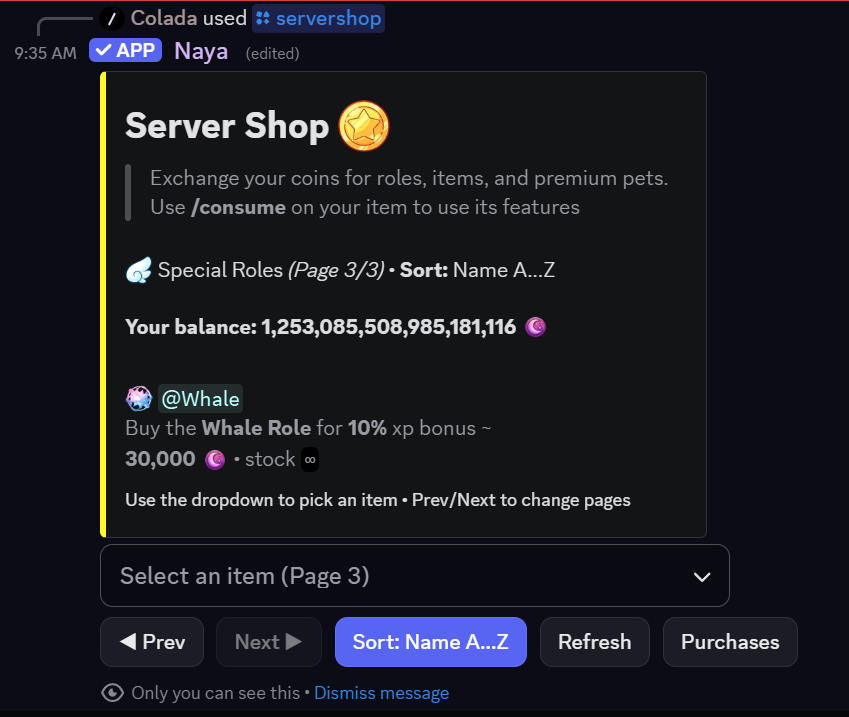
Server Currency gives your server its own local economy. Members can earn coins from normal activity, chests, minigames, quests, garden, pets, events, autoresponders, and staff-run rewards. The shop then gives those coins a purpose: roles, collectibles, private spaces, forms, gacha boxes, pets, seasonal perks, and custom item actions.

25 free shop items 500 premium shop items 3 free actions 5 premium actions chat cap
Server Currency preview
Open the dashboard and choose Currency.
Set the currency name, currency emoji, minigame reward amount, and minigame cooldown.
Create role items or custom items, then set price, stock, requirements, and actions.
Customize the Server Shop panel and save it when your item list is ready.

Setup

Currency settings
Currency nameThe display name for your server coins. Max 50 characters. Currency emojiEmoji shown beside prices and balances. Use a stable emoji Naya can access. Minigame rewardHow many coins minigames can award when enabled. Minigame cooldownHow long members wait between minigame rewards. Default is 24 hours.
Shop panel

The standard shop panel can use a title, description, embed color, author text, footer text, banner, thumbnail, author icon, and footer icon. Members browse it with the shop dropdown and page buttons.

Limits

Free servers can create up to 25 shop items, and each custom item can have up to 3 consume actions. Premium servers can create up to 500 shop items, and each custom item can have up to 5 consume actions.

Member commands
/servershopOpen the server shop. /inventoryView owned items in this server. /consumeUse a consumable custom item from inventory.

Chat capping

What capping means

Chat capping is part of Server Currency, not Leveling. It limits how many coins a member can earn from normal chat each day. Members can still talk after reaching cap, but they stop earning chat coins until the next day.

How chat rewards are calculated

When a message qualifies, Naya rolls a reward percent between your minimum and maximum percent, then applies it to the daily chat cap. For example, with a 500 daily cap and a 5 percent to 15 percent reward range, each qualifying message can award about 25 to 75 coins, but never past the member's remaining daily cap.

Important controls
EnabledTurns currency chat rewards on or off. Allowed channelsIf selected, only those channels can award chat coins. Minimum charactersShort messages below this length do not earn chat coins unless they include an attachment. Minimum seconds between messagesPrevents rapid short bursts from qualifying. User cooldownHow often one member can receive a chat coin award. Award chancePercent chance that a qualifying message actually awards coins. Daily chat capMaximum coins a member can earn from chat that day. Cap bonusExtra coins when a member reaches their daily cap. Streak bonusExtra reward every configured number of cap days. Cap announcementMessage sent when someone caps, usually in a dedicated logs or levels-style channel.
Cap announcement placeholders

The cap announcement template is sent when a member reaches the daily currency chat cap. It can be used for a simple public celebration or quiet activity log.

{user}Display name. {uid}User mention. {user_mention}User mention. {username}Username. {display_name}Display name. {caps_total}Total caps. {streak}Current cap streak.

Example: {uid} just capped for today! Streak: {streak} days.

Do not confuse this with leveling

Leveling can be disabled while currency capping be enabled, or vice versa, or both can be enabled. Currency capping has daily coin limits, cap streaks, and cap bonuses. A cap streak ends if a member misses the daily currency chat cap for a day.

Chests and earning paths

Chests

Chests can appear in selected channels and give members something occasional to claim. You can tune spawn channels, spawn chance, cooldown, guild-wide or per-channel cooldown mode, expiration time, whether expired chests are deleted, and the coin reward range.

Chest prize types
CoinsStandard coin prize. Uses the configured coin min and max. RolesCan grant roles from the role prize pool. Custom itemsCan grant custom shop items or special prizes. Type weightsControl how often each chest type is chosen. Min and max claimsControl how many members can claim each chest type.
Other earning paths

Currency can also come from Guildboard check-ins, quizzes, trivia, and lotteries; Garden water and bloom rewards; Pet play, feed, and adventure rewards; quests; giveaways or events through staff rewards; autoresponder custom actions; and item actions that grant currency.

Shop items

Item types
Role itemSells a Discord role. Each Discord role can only have one role shop item, and role item names follow the selected role. Custom itemA flexible inventory item. It can be collectible, consumable, hidden from shop later, granted only by chests or autoresponders or quests or gacha custom action items, or used as an action trigger. Item keyPermanent internal key. Custom item keys cannot be changed after creation.
Basic item settings
Display nameThe name of the item that the members see, it can be changed any time. Dropdown labelOptional shorter label for Discord select menus. EmojiOptional emoji beside the item. DescriptionExplain what the item is and what it does. PriceCost in your server currency. StockLimited stock, or unlimited if stock is disabled. CooldownHow long the same user waits before buying again. Enabled in shopDisable later to hide seasonal or retired items while keeping the item usable from inventories or grants. Consume on purchaseRuns actions immediately after purchase when supported. This has a minimum purchase cooldown of 30 seconds by default. Items with modal actions stay in inventory for /consume.
Purchase requirements

Items can require a minimum level, a minimum number of daily chat caps, minimum co-op reputation, minimum garden blooms, or one of up to 5 required roles. This is useful for prestige items, subscriber items, seasonal access, or shop categories that should feel earned.

Inventory behavior

Each server has its own inventory. Buying or earning an item in one server does not give it anywhere else. Custom items can be saved as collectibles or consumed later to run their attached actions.

Item actions

Custom actions run when an item is used with /consume, or immediately on purchase when consume on purchase is available for that item. Free servers can attach up to 3 actions per custom item. Premium servers can attach up to 5.

Action types
msg.dmSend a DM to the buyer. Discord may block DMs depending on privacy settings. msg.channelSend a public message in the current channel or a selected channel. msg.replyReply to the consume action. msg.ephemeralSend a private reply visible only to the member. modal.sendOpen a Discord modal form with up to 5 questions, then send the response to a selected channel. embed.logSend a staff log embed when the item is used. role.giveGive one role, optionally temporary. role.removeRemove one or more roles. nick.setSet a nickname, optionally temporary. timeout.userApply or clear a timeout. channel.createCreate a text channel, optionally private for the buyer. thread.createCreate a thread, optionally private. currency.giveGrant currency. Can be fixed or gacha weighted choices. xp.giveGrant leveling XP. Can be fixed or gacha weighted choices. inventory.giveGrant another custom item. Can be fixed or gacha weighted choices. pet.giveGrant a pet by pet key. Can be fixed or gacha weighted choices.
Action placeholders
{user}Buyer mention or display value. {name}Buyer display name. {user.id}Buyer user ID. {user.name}Buyer username. {user.display_name}Buyer display name. {item.name}Consumed item name. {item.key}Consumed item key. {guild.name}Server name. {server.name}Server name alias. {currency.amount}Currency amount from currency actions. {inventory.key}Granted item key. {inventory.qty}Granted item quantity. {xp.amount}XP amount from XP actions. {pet.key}Pet key from pet actions. {modal.title}Modal title for modal actions. {question1}First modal question. {answer1}First modal answer. {qa1}Formatted first question and answer.
Gacha actions

Currency, XP, inventory, and pet actions can use weighted choices. Only one choice is awarded when that action runs. Higher weight means more common. Lower weight means rarer. This is useful for boxes, crates, event rolls, or rare subscription prizes.

Custom panels

Premium servers can connect item custom actions to dropdowns or buttons on the dashboard Embed Builder. This can be used for additional features - such as using modal for suggestions, anonymous confessions, occasional custom check in rewards with gacha chances for special items, and anything else.

Useful examples

Sell a server announcement

Create a custom item such as announcement_ticket. Add modal.send with the announcement they want to post. Send the response to a staff review channel, or use a channel response with allowed mentions if your staff wants the purchase to post directly in the announcement or news channel. It can contain something such as: A new announcement from {user}.

Sell shop-only pets

Create the pet in Pets first, then keep it out of normal hatch results by using a 0 hatch weight. Then create a custom item with pet.give using that pet's pet key. This is ideal for seasonal pets, supporter pets, or rare collectible pets. It is also great for gacha items that can reward various pet types rewards. Remember to warn members that it will replace their current pet!

Seasonal custom roles

Create role items for seasonal roles, sell them during the season, then disable them in the shop when the season ends. Members keep the role if it is meant to be permanent, or you can use temporary role duration for timed access - such as temporary access to vip channels.

Premium color roles or role icons

Create one role item for each color or icon role. Use role.remove first to remove other premium color roles, then role.give to give the selected one. This avoids conflicting color roles. Naya needs Manage Roles, and her bot role must be above every role she gives or removes.

Subscription or gacha boxes

Create a custom box item. Add a gacha inventory.give, currency.give, or role.give style reward path. Give common rewards high weight and subscription-style prizes low weight. Weight is like percent chance but it doesn't have to equal 100. If the rare prize needs details, include a modal.send action asking for UID, region, order notes, or top-up details so the member can skip opening a ticket; and send to a private staff channel.

Custom private channels

Create a custom item with channel.create, use a name template like {user}-lounge, choose a category, and enable private channel for the buyer. This works well for temporary lounges, commission rooms, study rooms, or premium support spaces.

Reward bundles

Use multiple actions on one item: send a private reply, grant currency, grant a collectible item, and send a staff log. Premium servers can use up to 5 actions, so bundles can feel polished without staff handling every purchase manually.

Troubleshooting

Role actions do not work

Make sure Naya has Manage Roles and that her highest role is above the role being given or removed. Discord does not allow bots to manage roles equal to or above their own top role.

DM actions do not arrive

Discord may block DMs based on the member's privacy settings or shared server state. For important purchases, also use a channel message, ephemeral reply, or staff log.

Members are not earning chat coins

Check whether currency chat rewards are enabled, the channel is allowed, the message is long enough, the member is still on cooldown, the award chance failed, or the member already reached their daily chat cap.

Chests are not appearing

Check allowed chest channels, spawn chance, spawn cooldown, cooldown mode, and whether the bot can view and send messages in the channel.

Recommendations

Good starter setup
  • Use a simple currency name and emoji.
  • Enable chat capping with modest rewards and a healthy daily cap.
  • Add a small shop with 3 to 6 items people actually want.
  • Use requirements for prestige items, not every item.
  • Add custom actions only after the basic shop already feels clear.
Economy balance

If prices feel meaningless, reduce earning speed or raise prices slowly. If earning feels too slow, improve the daily cap, cap bonus, chest rewards, or event rewards before making every shop item cheaper.

Clarity matters

Every item should tell members what it does, whether it is consumable, whether it has a cooldown, and whether staff review is involved. Clear shop text prevents most support questions.

progression module

Leveling & Rank Cards

Leveling rewards members with XP for real activity. It is separate from Server Currency: leveling controls XP, levels, role rewards, boosts, announcements, voice XP, and rank cards. Currency capping controls daily coin earnings.

chat XP voice XP role rewards boosts rank cards
Leveling preview
Open the dashboard and choose Leveling.
Enable leveling, choose a level cap, and set a level-up announcement channel.
Review XP awards, anti-spam settings, diminishing returns, and the level curve.
Add role rewards, optional boosters, blocked channels, and a default server rank card.

Setup

Overview and announcements
Enable levelingTurns message leveling on or off for this server. Level capHighest displayed level. Set 0 for no cap. Announcement channelOptional channel for level-up messages. Announcement templateMessage sent when someone levels up.
Announcement placeholders
{user}Display name. {uid}User mention. {user_mention}User mention. {username}Username. {display_name}Display name. {level}New level. {xp}Total XP.
Member commands
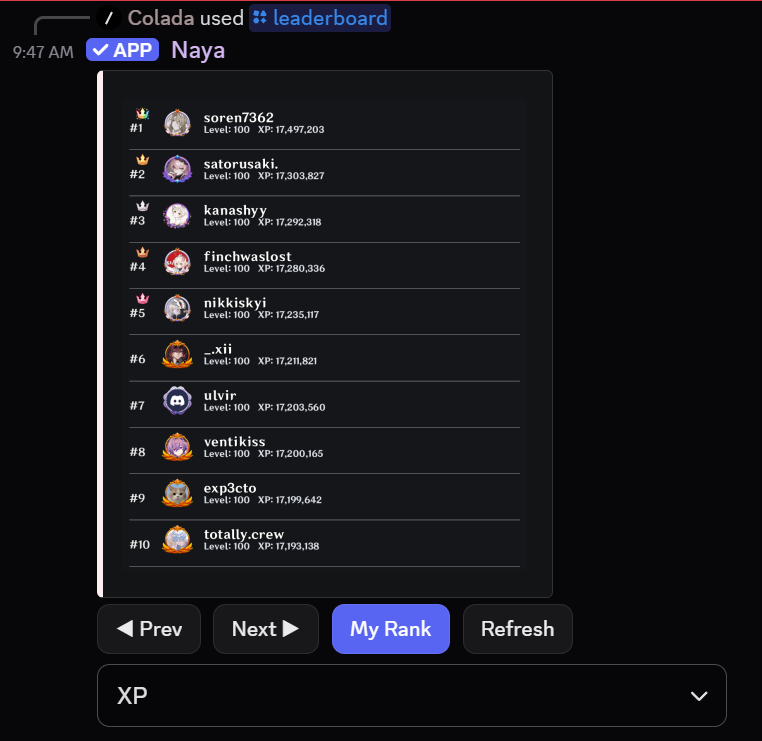
/rankView rank progress and rank card. /leaderboardView the server leaderboard.

XP awards

Text XP
Award chancePercent chance that an eligible message awards XP. Award min XPMinimum XP from an eligible award. Default is 5. Award max XPMaximum XP from an eligible award. Default is 10. Minimum charactersMessages shorter than this do not award XP unless they include an attachment. Minimum seconds between messagesMessages too close together do not qualify. User cooldown secondsHow often one member can receive XP from chat. Allow XP in threadsDisable if you only want main text channels to award XP.
Voice XP

Voice XP can award XP per minute when enabled. You can set XP per minute and the minimum number of members required in the voice channel. Use a minimum above 1 if you want to avoid empty-call farming.

Blocked channels

Blocked channels never award XP. Use this for bot commands, spam, staff channels, logs, counting channels, or anywhere progression would be easy to farm.

Level formula

The short version

The dashboard curve is XP(L) = A * L^2 + B * L + C. This is the XP cost for each level step. L is the target level, A is the quadratic part, B is the linear part, and C is the flat part.

The total XP version

Naya stores total XP. To know the total XP needed to reach level L, Naya sums the curve from level 1 through level L:

Total XP to reach L = A * L(L + 1)(2L + 1) / 6 + B * L(L + 1) / 2 + C * L

Default example

With the default curve A = 50, B = 50, and C = 0, level 1 needs 100 total XP, level 2 needs 400 total XP, level 5 needs 3500 total XP, and level 10 needs 22000 total XP.

How to tune A, B, and C
Curve AControls how sharply higher levels get harder. Raising A makes late progression much slower. Curve BAdds steady growth each level. This is easier to reason about than A. Curve CAdds a flat amount to every level step. Level capStops displayed leveling at the cap. A cap of 0 means unlimited leveling.

Diminishing returns

How it works

Diminishing returns are counted per member per hour. The first group of XP awards gets the full award percent. The next group gets the partial award percent. After the partial-award limit is reached, additional messages in that hour stop awarding XP.

Fields
Full awards before slowdownHow many XP awards in the hour use the full award percent. Partial awards until stopHow many total awards are allowed before XP stops for that hour. Full award percentPercent applied during the first phase. 100 means normal rewards. Partial award percentPercent applied during the second phase. 50 means half rewards.
Why use it

Diminishing helps prevent spam while still making normal activity feel rewarding. It encourages members to return naturally instead of dumping many messages at once.

Role rewards and boosts

Role rewards

Role rewards give roles automatically when members reach selected levels. If role stacking is on, members keep all earned reward roles. If it is off, they keep only the highest relevant reward role.

Booster roles

Booster roles grant extra XP to members with matching roles. If stacking is on, matching booster percentages add together up to the booster cap. If stacking is off, only the highest matching booster applies.

Channel boosts

Channel boosts add bonus XP for messages in selected channels. Use them for thoughtful areas like art, study, guides, event discussion, or slower high-effort channels. Keep bot and spam channels blocked instead.

Role permissions

Naya needs Manage Roles, and her top role must be above any reward role she gives or removes. If role rewards silently fail, role order is the first thing to check.

Rank cards

Default server rank card

The dashboard controls the default rank card for members who have not customized their own card. You can set frame style, shadow opacity, chat bar color, XP bar color, and on premium servers, a default wallpaper.

Premium wallpaper

Premium servers can upload a default rank card wallpaper. The dashboard recommends an 800 by 200 image. JPG, PNG, and WebP are supported by the upload field.

What cards show

Rank cards can show level, total XP, XP progress, daily chat progress from currency capping, and a server rank position. This is why currency cap progress can appear visually on the card, even though the cap itself belongs to Server Currency.

Troubleshooting

Members are not earning XP

Check that leveling is enabled, the channel is not blocked, thread XP is allowed if the message is in a thread, the message meets minimum characters, the member is not on cooldown, and the award chance did not fail.

Voice XP is not working

Make sure voice XP is enabled, the voice channel has at least the configured minimum members, and members are actually connected long enough for the voice ticker to award XP.

Level-up announcements do not post

Check the announcement channel, make sure Naya can view it, send messages, attach files if the rank card is included, and embed links if your announcement uses embeds.

Role rewards do not apply

Check Manage Roles permission and role order. Naya cannot give or remove roles that are equal to or above her highest role.

Recommendations

Good starter setup
  • Use a dedicated levels channel for announcements, rank cards, and leaderboards.
  • Keep the default XP range until you know the pace you want.
  • Use milestone role rewards, such as levels 5, 10, 25, 50, and 100.
  • Use blocked channels for bot commands and low-effort spam channels.
  • Enable diminishing returns if you want healthier pacing.
Pacing advice

If leveling is too fast, raise the curve, lower award chance, lower XP awards, or make diminishing stricter. If leveling is too slow, do the opposite slowly. Small changes are easier for members to understand.

Keep it visible

Leveling works best when members can see progress. Announcements, role rewards, rank cards, and leaderboards all help the system feel alive without needing staff to explain it repeatedly.

community module

Events

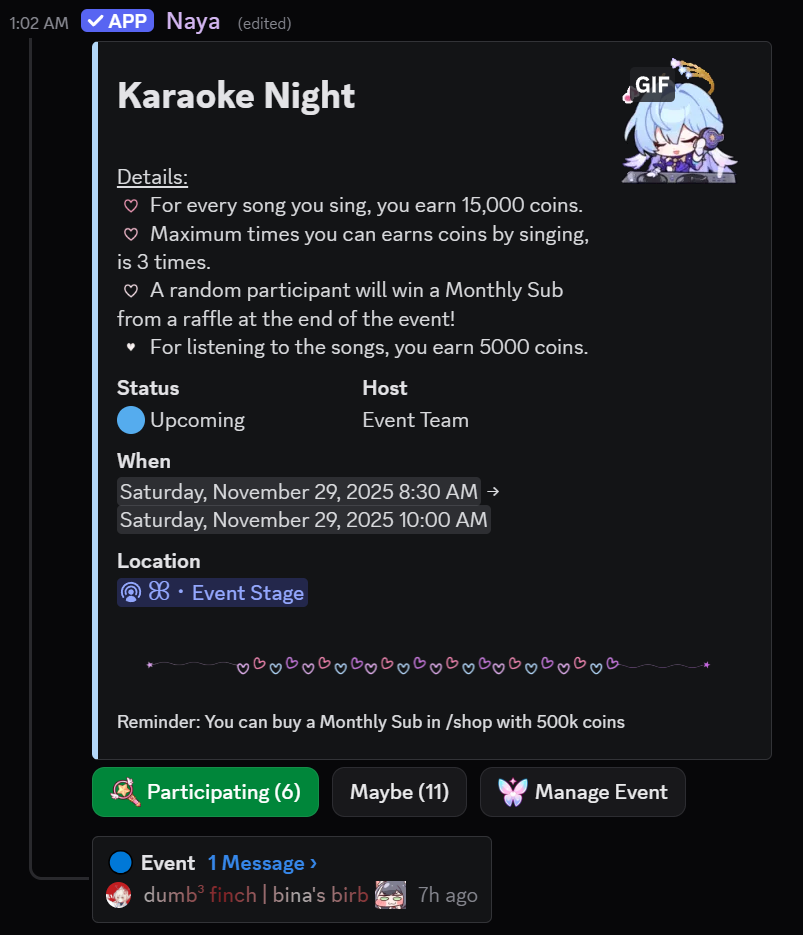
Events lets your server post a public event board, create event cards, collect RSVPs, open event threads, and run simple scored activities for individual members or teams. It is best for activities that need a clear place to join, a clear host, and a clear status.

event board rsvp solo scoring team scoring event threads
Events preview
Open the dashboard and choose Events.
Choose which staff or host roles can create events from the board.
Customize the board, then post it in the channel members should use for events.
Hosts click New Event, fill out the event draft, preview it, and post the event card.

Setup

Who can create events

Server owners, administrators, and members with Manage Server can create events. You can also choose creator roles in the dashboard so event staff, moderators, or community leads can use the New Event button without giving them broad admin permissions.

What members see

Members use the posted board to open All Events. Active and upcoming events stay easy to find. Canceled and ended events are kept out of the normal active list so members do not have to sort through old cards.

Where to post it

Use a dedicated events, announcements, or community hub channel. Naya needs permission to view the channel, send messages, embed links, create or manage related threads where applicable, and use external emojis if your board uses them.

Board Design

Board settings
TitleMain title for the Events Board. DescriptionShort instructions shown on the board. Mention what the server uses events for. ColorEmbed accent color for the board. Author textOptional small header line. Author iconOptional image URL for the author line. Footer textOptional footer shown at the bottom of the board. Footer iconOptional image URL for the footer. ThumbnailSmall image on the board embed. Banner imageLarge image on the board embed. Creator rolesRoles allowed to create events from the board.
Suggested board copy

Check the board for upcoming server events. Use All Events to browse active events. Event hosts can create new cards from this panel.

Keep this short. The event cards carry the details; the board should teach members where to click.

Event Fields

Basic event fields
Event typeStandard, Custom Solo, or Custom Teams. TitleThe event card title. DescriptionMain event details, rules, or instructions. Start timeUsed to decide when the event becomes ongoing. End timeUsed to decide when the event becomes ended. LocationChannel, voice room, stream link, game lobby, or meeting place. RewardOptional text describing prizes or participation rewards. HostThe creator is stored as the event host by default.
Event appearance fields
ColorEvent card accent color. Author nameOptional author/header text. Author icon URLOptional author image. Thumbnail URLSmall image shown on the card. Image URLLarge image shown on the card. Footer textOptional footer message. Footer icon URLOptional footer icon image.
Custom scoring fields

Custom Solo and Custom Teams can include questions, accepted answers, and point values. Members submit answers through a Discord modal while the event is ongoing. Because Discord modals only allow up to 5 text inputs at a time, keep custom event prompts focused.

An optional relay channel can copy submissions to staff so hosts can review what members entered.

Formats

Standard events

Use Standard events for watch parties, game nights, scheduled server activities, classes, hangouts, community meetings, or any event where members mainly need a time, place, host, and details. Before the event starts, members can RSVP as participating or maybe.

Custom Solo events

Use Custom Solo events when each member submits their own answers and earns points independently. Good fits include prediction contests, trivia rounds, puzzle hunts, scavenger clues, screenshot challenges, or "guess the score" events.

Custom Teams events

Use Custom Teams events when members should create teams, join teams, and submit answers for their team. Good fits include team puzzle nights, house competitions, group predictions, tournament side games, or collaborative challenges.

RSVP & Scoring

Buttons members use
ParticipatingRSVP yes for an upcoming event. MaybeRSVP maybe for an upcoming event. ParticipantsView RSVP lists, solo points, or team points depending on the event type. Submit AnswersSubmit answers while a Custom Solo or Custom Teams event is ongoing. Create TeamCreate a team for a Custom Teams event. Join TeamJoin an existing team for a Custom Teams event.
How scoring works

Correct custom answers award points once. If a user or team submits the same already-solved answer again, Naya records the submission but does not award duplicate points. Event cards can show top participants or top teams so members can follow progress.

Busy event behavior

RSVP clicks are buffered briefly so busy events can handle fast button activity. Counts may appear a moment behind during a rush, then settle as Naya flushes the latest choices.

Management

Status behavior
UpcomingThe start time has not arrived. RSVP buttons are shown. OngoingThe event is live. Standard events show participants; custom events open submissions. EndedThe event has ended by time or by host action. CanceledThe event was canceled and is removed from normal active browsing.
What hosts can adjust

Hosts can update event details, refresh the event card, change status, and keep the related event thread aligned. This is useful because real event details often change after the first announcement.

Keeping the board clean

End or cancel events when they are no longer active. A board that only shows current events will feel much more trustworthy to members.

Useful examples

Movie night or watch party

Use a Standard event. Put the streaming platform or voice channel in Location, add the time, and use Reward only if there is a participation prize. Members can RSVP before it starts, and the host can update the card if the movie or time changes.

Prediction contest

Use Custom Solo. Add prompts such as "Who will win?" or "What score will it end with?", accepted answers, and point values. Use the relay channel if staff wants to review entries as they come in.

Puzzle hunt

Use Custom Solo for individual puzzles or Custom Teams for group puzzles. Keep the first event to 3 to 5 prompts so submissions fit cleanly in the modal. Give each question a point value based on difficulty.

Team challenge night

Use Custom Teams. Set a minimum and maximum team size, then let members create and join teams from the event card. This works well for house points, server factions, study groups, game squads, or seasonal teams.

Staff-hosted recurring event

Use the same board and make each recurring session a new event card. Reusing the board keeps members trained on where to check, while separate cards keep each event clean.

Troubleshooting

The New Event button is not available

Check the creator role list in the dashboard. The member must have a selected creator role, Manage Server, Administrator, or be the server owner.

Event buttons do not respond

Make sure Naya can view the channel, send messages, embed links, and access the event card. If the card was manually deleted, repost or recreate the event from the board.

Members cannot submit answers

Submissions only open while Custom Solo or Custom Teams events are ongoing. Standard events do not have answer submissions.

Team members cannot submit

For Custom Teams, the member must be in a team before submitting. Check team size limits and make sure the event is ongoing.

Recommendations

Good starter setup
  • Use one visible Events Board channel.
  • Give event creation to a small trusted host role.
  • Start with Standard events until members understand the board.
  • Use Custom Solo for simple scored contests.
  • Use Custom Teams only when the team flow is important.
Make events easy to scan

Use short titles, clear times, one location, and a short reward note. Put long rules in the event thread or description only when they are truly needed.

Choose the simplest format

If an event does not need answers or points, use Standard. If it does not need teams, use Custom Solo. The simpler format is usually easier for members to join.

community module

Pets

Pets are server-specific companions that members can hatch, name, care for, level, and send on adventures. Admins design the pet lineup, rarity chances, hunger rules, rewards, images, and scaling from the dashboard. The goal is simple: give members something friendly to return to without turning the server economy into a chore.

4 free pet types 500 premium pet types eggs rarity rewards
Pets preview
Open the dashboard and choose Pets.
Set hatching, release cooldown, rarity chances, global scaling, and the default embed color.
Create pet types with rarity, image, starve days, rewards, adventure cooldowns, and optional special behavior.
Save the settings, then members can use /pet to begin.

Setup

What the dashboard controls
Hatch settingsHow many unique interactions an egg needs before it can hatch. Set this to 0 for instant hatching. Release cooldownHow long a member must wait after releasing a pet before using -releasepet again. It can be disabled with 0 hours. Rarity chancesThe first layer of hatch odds: Common, Uncommon, Rare, and Ultra Rare. Global scalingMax pet level, coins per level, pet XP per level, player XP per action, and the adventure player XP multiplier. Pet typesThe actual pets members can hatch, including each pet's rarity, image, rewards, hunger behavior, and adventure cooldown.
Limits

Free servers can create up to 4 pet types. Premium servers can create up to 500 pet types. Start with a small lineup first, then add seasonal or rare pets once the system feels balanced.

Member flow

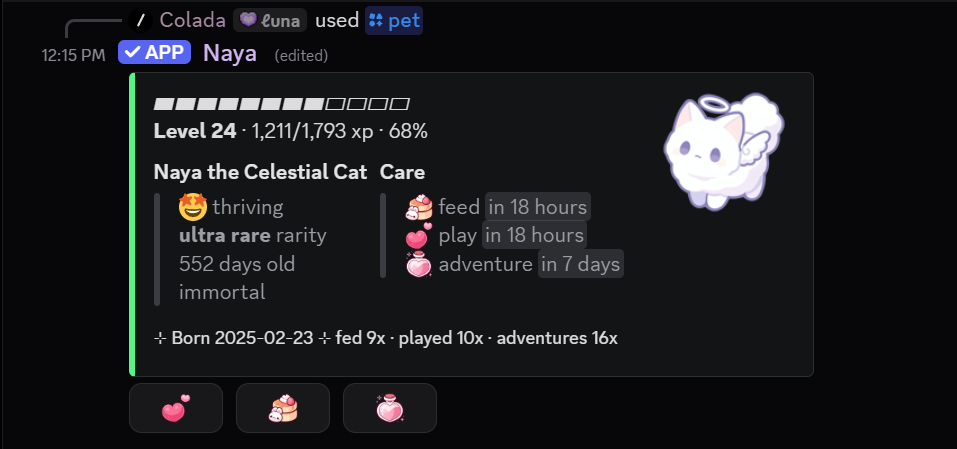
Members use /pet. If they do not have an active pet, Naya creates a Mysterious Egg for them. Once the egg receives enough unique interactions, it hatches and the owner names the new pet.

Hatching and rarity

Egg interactions

Eggs can require up to 100 unique member interactions before hatching. This makes hatching feel social. If you want pets to be immediate, set the required interactions to 0.

Two-step hatch roll

When an egg hatches, Naya first chooses a rarity using the rarity chances you configured. Then she chooses a pet inside that rarity using each pet type's weight. Higher weight means the pet appears more often. Lower weight makes the pet rarer.

Other ways to give pets

Pets can also be granted through server shop items, chests, or staff reward flows that use a give-pet style action. This is useful for event pets, shop-only pets, and special collectibles.

Care and rewards

Play, feed, and adventure
PlayA light action that can give coins, pet XP, and player XP. FeedKeeps the pet healthy and can also give coins, pet XP, and player XP. AdventureA larger action with its own cooldown, coins, pet XP, and double coin chance. Double coinsEach pet type can set a double coin chance for play, feed, and adventure rewards.
Level scaling

Pet rewards can scale as the pet levels. The dashboard lets you set the max level, extra coins per level, extra pet XP per level, player XP per action, and how much more player XP adventure gives compared with play and feed.

Hunger and immortality

Each pet type has starve days. If a normal pet is not fed for too long, it can become deceased. Immortal pets ignore starve days and cannot be lost this way, which is best for rare, premium, or event pets.

Pet types

Per-pet options
NameDisplay name for the pet type. RarityCommon, Uncommon, Rare, or Ultra Rare. Image URLThe image shown on the pet embed. Embed colorOptional color override for that pet type. WeightHow often this pet appears after its rarity is selected. Starve daysHow long the pet can go without being fed before it dies, unless it is immortal. ImmortalPrevents the pet from dying due to hunger. Custom reactLets selected pets use their special reaction behavior where supported. Play rewardsCoins, pet XP, and double coin chance. Feed rewardsCoins, pet XP, and double coin chance. Adventure rewardsCoins, pet XP, cooldown hours, and double coin chance.
Images and style

Pet images should be stable direct image links. For Discord-hosted images, upload the image in Discord, copy the image link, and keep the original Discord message available so the link does not disappear later.

Safety

Pet names

After hatching, the owner names their pet. Naya checks names against blocked words and domains before accepting them. Staff should still keep an eye on names, especially in larger servers.

Releasing pets

Members can release a pet when they want to start over by using -releasepet command. Releasing wipes the current pet and can apply the release cooldown. Keep the cooldown enabled if you want to prevent frequent rerolling.

Recommendations

Good starter setup
  • Use 3 or 4 pet types at first.
  • Keep Common around the easiest pets, then make Rare and Ultra Rare feel special.
  • Use small play and feed rewards, with adventure as the larger slower reward.
  • Make event or premium pets immortal if losing them would feel bad.
  • Use 5 to 10 egg interactions for a social hatch, or 0 if you want instant pets.
Common issues

If rewards feel too high, check adventure coins, adventure cooldown, level scaling, and double coin chance first. If members cannot hatch pets, make sure the pet lineup has at least one valid pet type and that the rarity chances are not all set to 0.

community module

Garden

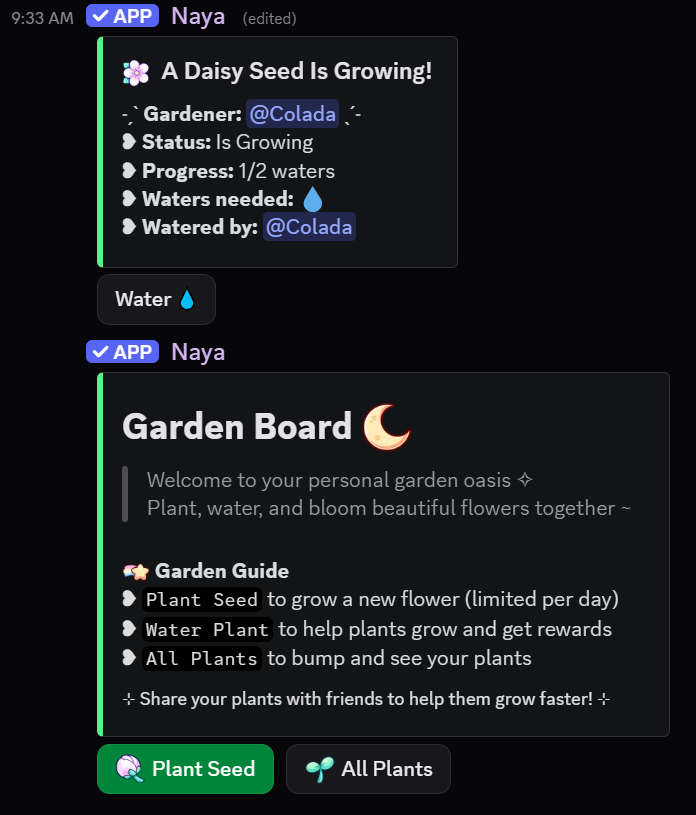
Garden is a shared activity board where members plant seeds, help water each other's plants, and earn rewards when plants bloom. It is meant to be calm, social, and easy to maintain. The dashboard controls the board appearance, watering rules, plant types, cooldowns, and both water and bloom rewards.

4 free plant types 500 premium plant types watering blooms rewards
Garden preview
Open the dashboard and choose Garden.
Edit the board title, description, color, header, footer, and media.
Set limits, cooldowns, water rewards, default emojis, and plant types.
Choose the post channel, then use Save and Post.

Setup

Board appearance

The board can use a title, description, embed color, header text, footer text, banner, thumbnail, header icon, and footer icon. Keep the board copy short, because the real activity happens on the plant messages.

Save and post

Save stores the dashboard draft. Save and Post publishes the garden board in the selected channel. A dedicated garden channel works best, and many servers turn off regular member messages in that channel so active plants stay easy to find.

Limits

Free servers can create up to 4 plant types. Premium servers can create up to 500 plant types.

Settings

Limits
Waters per dayHow many total plants one member can water per day. Default is 5. Max active plantsHow many living plants one member can have at once. Default is 3.
Cooldowns
Plant cooldownHow long a member waits between planting seeds. Default is 24 hours. Per-plant water cooldownHow often the same member can water the same plant. Default is 24 hours. Bump cooldownHow often the board can be bumped. Default is 60 minutes. Days without waterHow long a plant can go without being watered before it wilts. Default is 3 days.
Water rewards

Water rewards are small rewards given when a member waters a plant. You can set coin min and max, XP min and max, double coin chance, and the open and closed colors used for plant embeds.

Default emojis

The fallback emoji is used when a plant needs a general bloom visual. The seed emoji is used for new seeds. Custom Discord emoji can make the garden feel much more like your server.

Plant types

Per-plant options
NameDisplay name for the plant type. DescriptionShort dropdown or preview description. Bloom emojiThe final visual used when the plant blooms. Young emojiOptional early growth visual. Budded emojiOptional middle growth visual. Waters requiredHow many waters the plant needs to bloom. WeightHow often this plant appears when members plant random seeds. Open and closed colorOptional embed colors for active and finished plant states. ThumbnailsGrowing, bloomed, and wilted thumbnail URLs. Bloom rewardsCoins min and max, XP min and max, and bloom double coin chance.
Random seed weighting

When someone plants a seed, Naya chooses one of your plant types at random. Higher weight makes a plant more common. Lower weight makes a plant rarer. For example, a plant with weight 10 appears more often than a plant with weight 2.

Water rewards vs bloom rewards

Water rewards go to the member who waters. Bloom rewards go to the plant owner when the plant successfully blooms. This lets helping feel worthwhile while keeping the larger reward attached to finishing a plant.

Member flow

How members use it
  • A member presses Plant Seed on the garden board.
  • If they are not on cooldown and have not reached their active plant limit, Naya creates a plant message.
  • Members press Water on a plant to help it grow.
  • The All Plants button lets members browse active plants in that channel.
  • When the plant reaches its required waters, it blooms and the owner receives bloom rewards.
Blooming and wilting

Plants bloom when they receive enough waters. If a plant goes too long without water, it wilts, stays marked as finished, and its button is disabled. Use a generous wilt timer if your server is small or relaxed.

Troubleshooting

Buttons or posts do not work

Make sure Naya can view the garden channel, send messages, embed links, use external emoji if your plants use them, and create or edit the messages she posts. If the channel is read-only for members, Naya still needs permission to send there.

Members cannot plant or water

Check plant cooldown, waters per day, per-plant water cooldown, max active plants, and whether the plant has already bloomed or wilted.

Recommendations

Good starter setup
  • Use a dedicated garden channel.
  • Start with 3 or 4 plant types.
  • Keep water rewards small and bloom rewards more exciting.
  • Use a few common plants and one rare plant.
  • Set wilt time long enough that members do not feel punished.
Balance tip

If the garden starts giving too much currency, lower water rewards first. Watering can happen often, while bloom rewards are naturally limited by waters required, plant cooldowns, and active plant limits.

community module

Co-op Board

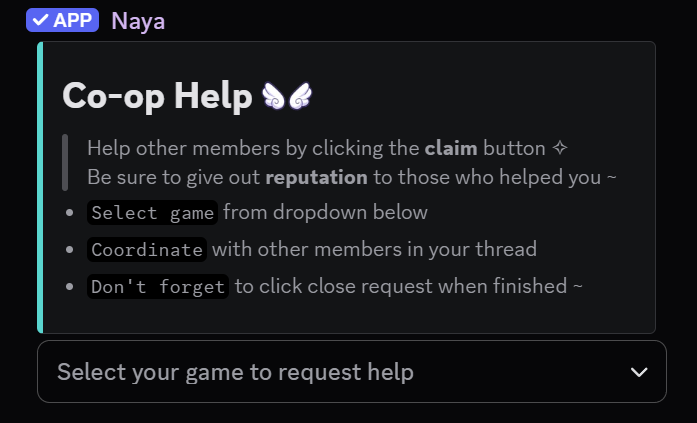
The Co-op Board is a public request board for games, activities, commissions, raids, marketplace posts, or any server flow where members need help. Members choose a game or activity from the board, fill out a short form, and Naya posts a request with claim, close, and copy buttons. Each request also gets a thread so the main board stays easy to browse.

4 free games 25 premium games threads claim buttons reputation
Co-op Board preview
Open the dashboard and choose Co-op.
Customize the board title, description, color, author, footer, and media.
Set the request cooldown, blacklist roles, and game or activity entries.
Choose the post channel, then use Save and Post.

Setup

Board editor

The board can use a title, description, embed color, author text, footer text, banner image, thumbnail, author icon, and footer icon. Keep the description clear enough that members know what kind of requests belong there.

Save and post

Save stores the draft. Save and Post publishes the board in the selected channel. A read-only public board channel works best: members interact with Naya's dropdown and buttons, while discussion happens in the thread attached to each request.

Limits

Free servers can create up to 4 co-op games or activities. Premium servers can create up to 25.

Games and request types

Per-game options
Game nameName shown in the dropdown, such as Genshin Impact, Raids, Commissions, or Art Trades. DescriptionShort dropdown description. EmojiUnicode or custom Discord emoji shown beside the dropdown option. Ping rolesRoles Naya can mention when this request type is posted. Expire afterHow many hours requests stay open. Allowed range is 1 to 720 hours. Open and closed colorColors used for active and finished request embeds. Embed titleOptional request embed title override. Header and footerOptional text for request embed styling. Request mediaOptional banner and thumbnail URLs for this request type. Custom labelsUID or Username, Level or Gear, and Runs or Kills can be renamed to match the game or activity.
Examples

Useful request types include NA Co-op, EU Co-op, Raids, Dungeons, Quest Help, Art Commissions, Art Trades, Marketplace Offers, or Team Finder. The field labels should match the activity so members know exactly what to enter.

Request flow

How members create requests
  • A member selects a game or activity from the co-op board dropdown.
  • Naya opens a form asking for region, UID or name, level or gear, runs or kills, and a short request message.
  • Naya posts the request embed in the board channel.
  • Naya creates a thread for that request so members can coordinate without cluttering the board.
Claim, unclaim, copy, and close
ClaimHelpers press this to show they are helping. Pressing again can unclaim. Copy DetailsCopies the main identifier field, which is useful for games that need UID or username sharing. Close RequestThe requester can close the request when it is finished. ReputationWhen closing, the requester can optionally give one helper +1 co-op reputation.
Reputation

Co-op reputation is per server. It appears beside helpers when they have it and is meant to gently highlight members who often help, not force a competitive grind.

Roles and access

Ping roles

Each game or activity can have its own ping roles. This lets Naya notify only the people who asked for that kind of request instead of pinging everyone. Use this carefully so the board stays helpful instead of noisy.

Blacklist roles

Members with a selected blacklist role cannot create co-op requests. This is useful for watch-only roles, temporary restrictions, or servers that want request creation limited to approved members.

Request cooldown

The server-wide request cooldown prevents the same member from opening requests too quickly. The dashboard supports 0 to 10080 minutes. Use 0 only if you are comfortable with members creating requests without delay.

Troubleshooting

Requests or threads do not post

Make sure Naya can view the board channel, send messages, embed links, use external emoji if needed, create public threads, and send messages in threads. If the board channel is read-only for members, Naya still needs permission to post there.

A member cannot create a request

Check whether the member is on cooldown, has a blacklist role, or is trying to use a request type that no longer exists. Also confirm the board has at least one valid game or activity configured.

Recommendations

Good starter setup
  • Use a dedicated board channel.
  • Turn off regular member messages in that channel if you want the board to stay clean.
  • Start with a few clear request types instead of every possible category.
  • Use field labels that match the game or activity.
  • Use ping roles only for groups that actually want those pings.
  • Set expiration so old requests do not stay open forever.
Balance tip

Short cooldowns work well for fast games. Longer cooldowns and longer expiration windows work better for commissions, trades, or slower requests where the conversation may take time.

engagement module

Guildboard

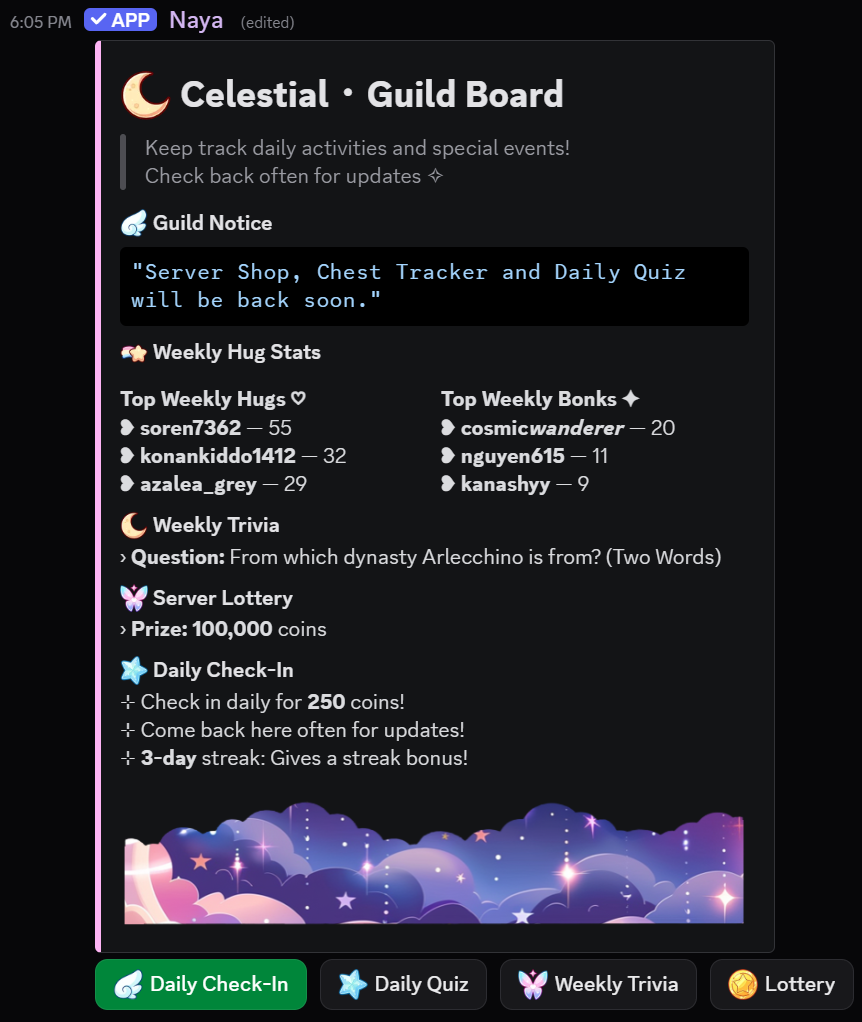
Guildboard is a public activity board for daily check-ins, quiz questions, weekly trivia, lottery guesses, weekly stats, and chest tracking. It gives members one easy message to return to for small rewards and light community activity.

daily rewards 8 free quiz questions 200 premium quiz questions trivia draws lottery draws
Guildboard preview
Open the dashboard and choose Guildboard.
Choose the board title, description, color, notice, and optional media.
Enable only the features your server will actually use.
Set currency and XP rewards, then use Save and Post.

Setup

Posting the board

Use Save and Post in the dashboard to post Guildboard in the selected channel. If Naya has the previous board message stored, she updates that message when possible. If it is gone, she posts a new one.

Start small

Daily Check-In is the best first feature because it is simple and useful immediately. Add Daily Quiz, Weekly Trivia, Lottery, weekly stats, and chest tracking after the board already feels clear.

Required connected systems

Guildboard can award server currency and leveling XP. If those systems are not configured, rewards may feel confusing or may not display as intended. Chest Tracker uses Server Currency chest settings.

Board Design

Board editor fields
TitleBoard title. Max 256 characters. DescriptionMain board text. Max 4096 characters. ColorEmbed accent color. Author textOptional header line. Max 256 characters. Author icon URLOptional image URL for the author line. Footer textCustom footer. Max 2048 characters. Premium Footer icon URLOptional image URL for the footer. Notice textShort announcement block. Max 300 characters. Banner URLLarge image shown on the board. Thumbnail URLSmall image shown near the top right.
Notice examples

Daily check-ins are live. Answer today's quiz for a bonus reward.

Weekly trivia ends on Sunday. Submit your answer before the draw.

Chest channels reset throughout the day. Check the tracker before hunting.

Feature Toggles

Toggle list
Daily Check-InMembers claim currency and XP once per UTC day. Daily QuizMembers answer one random quiz question per UTC day. Weekly TriviaOne active written-answer prompt with a manual results draw. LotteryOne active guess-based lottery with a manual results draw. Weekly Hugs / BonksShows weekly hug and bonk leaders from Hugs & Bonks. Weekly Messages / XPShows weekly message and XP leaders. Chest TrackerShows chest readiness for configured chest channels.
Readability advice

Do not enable every feature just because it exists. A board with Daily Check-In, one weekly feature, and one stats block often feels more useful than a board with every section turned on.

Daily Check-In

Members press the Check-In button once per UTC day. Naya tracks the member's streak and awards the configured currency and XP.

Reward settings
Reward currencyCoins paid each day. Default is 50. Reward XPLeveling XP paid each day. Default is 10. Streak bonus daysHow often a streak bonus triggers. Default is 7. Streak bonus currencyExtra currency paid on a streak bonus day. Default is 250. Streak bonus XPExtra XP paid on a streak bonus day. Default is 50.
UTC reset

Check-In resets by UTC day. If a member says they already checked in even though it is a new local day, the UTC day may not have changed yet.

Daily Quiz

Daily Quiz uses a question bank. When a member clicks the quiz button, Naya randomly chooses one saved question and asks the member to answer with A, B, C, or D. A member can submit one quiz answer per UTC day.

Question settings
QuestionThe prompt shown to members. Max 150 characters in the dashboard editor. Options2 to 4 possible answers, one per line. Correct optionThe correct A, B, C, or D answer. Reward currencyCoins awarded if the answer is correct. Reward XPXP awarded if the answer is correct. Free limitFree servers can save up to 8 quiz questions. Premium limit Premium servers can save up to 200 quiz questions.
Good question examples
  • What channel should new members read first?
  • Which server role unlocks the art channels?
  • What day do weekly events usually happen?
  • Which pet rarity is the rarest in this server?

Weekly Trivia

Weekly Trivia is one active written-answer question. Members submit private answers. When staff is ready, use the dashboard draw button to post results, award correct winners, clear the active trivia, and prepare for the next question.

Trivia settings
QuestionThe active trivia question. Max 500 characters. AnswerThe correct answer Naya checks. Reward currencyCoins awarded to correct winners. Reward XPXP awarded to correct winners. Case sensitiveIf enabled, capitalization must match the stored answer. Draw resultsPosts results in a selected channel and clears the active trivia.
Before replacing trivia

If a trivia question is already active, draw it first. This prevents old submissions from being mixed with a new prompt.

Lottery

Lottery lets members submit a private guess. Staff draws the lottery manually when it is over. Naya posts the result, awards prizes, clears entries, and ends the active lottery.

Lottery settings
ActiveWhether a lottery is currently accepting entries. Prize currencyMain reward for the winner. Pity prize currencyOptional smaller prize for closest guesses. Pity prize countHow many closest guesses can receive pity rewards. Hard cap is 10. Draw lotteryPosts results in a selected channel, awards rewards, and clears entries.
Prize advice

Use a modest main prize if lottery is frequent. Use a larger prize if it is weekly or event-based. Pity prizes help participation feel worthwhile even when only one member wins the main prize.

Stats & Chests

Weekly activity stats

Weekly Hugs / Bonks shows hug and bonk leaders. Weekly Messages / XP shows message and XP leaders. These blocks make the board feel alive, but they are best when your server enjoys light visibility around activity.

Chest Tracker

Chest Tracker uses Server Currency chest settings and can show status for up to 12 configured chest channels. Set up chest channels in Server Currency first, then enable Chest Tracker on Guildboard.

Refreshing the board

Stats and chest information are freshest when the board is posted or refreshed. If members report stale data, save and repost or refresh the board after changing related settings.

Useful examples

Simple daily rewards board

Enable Daily Check-In only. Use a short notice such as Claim your daily reward here. Set a small currency reward and a small XP reward. This gives members a low-pressure reason to return without cluttering the board.

Server guide quiz

Create quiz questions about rules, useful channels, server currency, pets, or events. Keep rewards small. This helps members learn the server through daily prompts instead of asking staff the same questions.

Weekly trivia rhythm

Post one trivia question each Monday and draw it on Sunday. Use the notice to show when trivia ends. This gives the server a recurring activity that does not require constant moderation.

Lottery with pity prizes

Use a main prize for the exact or closest winner and a small pity prize for up to 3 to 5 close guesses. This makes the lottery feel friendlier in small servers where one winner can otherwise feel too narrow.

Currency hub

Enable Daily Check-In, Chest Tracker, and Weekly Messages / XP. This turns Guildboard into a useful activity hub for servers that already use Server Currency and Leveling heavily.

Troubleshooting

The board does not post

Make sure Naya can view the selected channel, send messages, embed links, and use external emojis if your board uses custom emojis. If Naya is trying to update a deleted board message, use Save and Post again.

A member cannot check in

Check-In is once per UTC day. If they already checked in for the current UTC date, they need to wait for the next UTC day.

Quiz says already answered

A member can submit one quiz answer per UTC day. Opening a quiz prompt does not count by itself, but submitting an answer does.

Trivia cannot be replaced

Draw the active trivia first, then create the next one. This keeps submissions and winners clean.

Chest Tracker is empty

Check Server Currency chest channels, spawn settings, and whether Chest Tracker is enabled. The tracker cannot show chest channels that are not configured.

Recommendations

Keep it readable

Guildboard should be glanceable. If members need to scroll through too much information, disable a feature or shorten the notice.

Reward balance

Daily rewards should feel nice but not replace your whole economy. If members can earn a large shop item from a few check-ins, lower check-in rewards or raise shop prices.

Friendly pacing

Daily Check-In is for routine. Weekly Trivia and Lottery are for rhythm. Stats and Chest Tracker are for visibility. Use each feature for the job it does best.

identity module

Server Profiles

Server Profiles are per-member profiles unique to each server, mixing activity summaries with optional personal visuals.

identitystatsvisuals

Setup

Profiles are meant to feel like a light server scrapbook page that updates as members hang out.

What Profiles Show

  • Coins earned
  • Level and daily caps
  • Messages and activity
  • Active pet type and name
  • Hugs received, bonks received, flowers bloomed, and co-op reputation when enabled

Customization

  • /serverprofile lets members view their profile in the current server.
  • Optional visuals can include bio, banner, embed color, and stored game UIDs or usernames.

Safety & Comfort

  • Main Settings can restrict inappropriate visuals.
  • A blacklist role can block certain members from using custom profile visuals, wallpapers, or hug/bonk images.
moderation module

Tickets

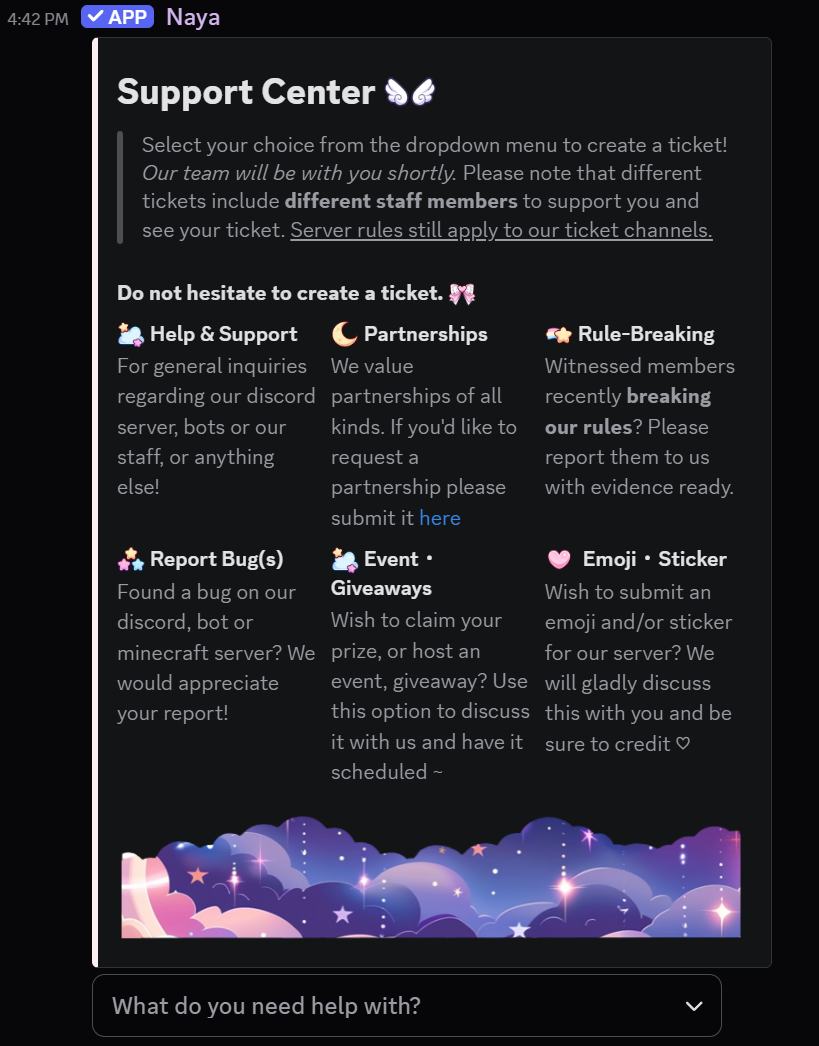
Tickets give members a private place to ask for help, report issues, appeal decisions, or open structured requests. The dashboard is the main setup path: build the panel, create ticket types, choose channel or thread mode, and post the panel when it is ready.

dashboard setupprivate supportstaff rolestranscriptscustom types
Tickets preview
Open the dashboard and choose Tickets.
Set the panel title, description, color, media, logs channel, ticket category, and ticket mode.
Create ticket types with staff roles, welcome messages, optional questions, and routing overrides.
Choose a post channel, then use Save and Post to publish one clean ticket panel.

Panel and system settings

Panel appearance

The ticket panel can use a title, description, color, author, banner, thumbnail, author icon, footer icon, and fields. Premium servers can also customize the panel footer text and post the panel through a webhook name and avatar.

System settings
Logs channelReceives ticket activity and transcript notices. ButtonsClose, Claim, Add Members Buttons can be disabled or enabled from dashboard. Ticket categoryDefault category for channel tickets, or the host area used by your setup. Ticket modeChoose channel tickets or private thread tickets. Private threads are useful because you can exceed 50 channel limit. Transcript linksUse secure website transcript links, or disable them to use older HTML transcript files which will not be sent elsewhere. Name formatDefault is {type}-{seq:03d}-{user}.
Save and post

Save stores your draft. Save and Post publishes the panel to the selected channel. Naya requires a logs channel, ticket category, post channel, and at least one open ticket type before posting. You can leave the ticket-type filter off to show every open type, or enable it to post a panel that only shows selected ticket types.

Ticket types

Limits

Free servers can create up to 4 ticket types. Premium servers can create up to 25. Example types include different queues such as Support, Report, Appeal, Purchase Help, or Event Help. You may send multiple ticket panels with your choice of ticket types in each.

Per-type options
Display titleName shown in the dropdown and ticket context. DescriptionShort dropdown description. EmojiUnicode or custom Discord emoji shown beside the type. StatusOpen or closed. Closed types stay saved but cannot be opened. Staff rolesRoles that can view and manage that ticket type. Up to 8 roles can be selected. Ping rolesRoles mentioned above the ticket welcome embed. You can also use everyone or here. Staff threadOptionally create a private staff-only thread whenever this type opens. Category overrideOptional category override for that type, so the tickets are made in a separate category. Transcript overrideOptional transcript channel override for that type, so the logs and transcripts are sent in a separate category. This is useful if you don't want sensitive admin tickets to be viewed by other staff.
Opening message and questions

Each type can have its own first message inside the ticket, with optional content above the embed, ping roles, embed title, description, color, thumbnail, large image, and fields. You can also add up to 5 short pre-ticket questions so members provide the needed details before the ticket opens.

Staff workflow

Ticket commands
/ticket createCreate a ticket without using the panel. /ticket closeClose the current ticket with an optional reason. /ticket addAdd another member to the current ticket. /ticket removeRemove a previously added member. /ticket threadCreate or restore a private staff thread for a channel ticket. /ticket claimClaim the current ticket. /ticket unclaimRelease a claimed ticket. /ticket pingDM a member about the current ticket when Discord allows the DM.
Transcripts

When a ticket closes, Naya creates a transcript, sends it through the logs flow, and tries to DM the opener. Discord may block DMs depending on the member's privacy settings, so logs are the reliable staff copy. The dashboard transcript list can be searched by type, opener name, reason, ticket number, or opener ID, and sorted by latest, oldest, ticket type, or opener.

Permissions

Naya needs permission to view channels, send messages, embed links, manage channels or private threads, manage permissions, and attach transcript files or links. Staff roles should be above normal member roles and easy to audit.

Placeholders

Ticket placeholders work in panel text, ticket type opening messages, media URL fields, and ticket name formats where supported. The dashboard preview uses sample values.

User placeholders
{user}Member mention {user_name}Username {user_tag}Display tag {user_id}User ID {user_avatar}Avatar URL {user_nick}Server nickname {user_displayname}Display name {user_display_name}Display name {user_joindate}Server join date {user_createdate}Account creation date {user_displaycolor}Role color {user_display_color}Role color {user_highestrole}Highest role {user_highest_role}Highest role {user_toprole}Top role {user_top_role}Top role {user_boostsince}Boost start date
Member aliases
{member}Member mention {member_mention}Member mention {member_name}Username {member_avatar}Avatar URL {member_avatar_url}Avatar URL {member_top_role}Top role {member_highest_role}Highest role {member.mention}Member mention {member.name}Username {member.display_name}Display name {member.avatar_url}Avatar URL {member.top_role}Top role {member.highest_role}Highest role
Server placeholders
{server_name}Server name {server_id}Server ID {server_membercount}Total member count {server_membercount_ordinal}Member count with ordinal text {server_membercount_nobots}Human member count {server_botcount}Bot count {server_icon}Server icon URL {server_icon_url}Server icon URL {server_banner}Server banner URL {server_banner_url}Server banner URL {server_rolecount}Role count {server_channelcount}Channel count {server_owner}Owner mention {server_createdate}Server creation date {server_boostlevel}Boost tier {server_boostcount}Boost count {server_nextboostlevel}Next boost tier {server_nextboostlevel_required}Total boosts needed for next tier {server_nextboostlevel_until_required}Additional boosts needed
Guild aliases
{guild}Server name {guild_name}Server name {guild_icon_url}Server icon URL {guild_banner_url}Server banner URL {guild.name}Server name {guild.icon_url}Server icon URL {guild.banner_url}Server banner URL {guild.member_count}Total member count
Ticket placeholders
{ticket_id}Ticket database ID {ticket_number}Ticket number {ticket_seq}Ticket sequence number {ticket_type}Ticket type label {ticket_title}Ticket type title {ticket_key}Ticket type key {ticket_channel}Ticket channel mention or name {ticket_created_at}Created date {ticket_created_relative}Relative created time {ticket_created_timestamp}Discord timestamp {ticket_createdate}Created date {type}Ticket type key for name formats {seq}Ticket sequence for name formats
Channel name format

Channel names are cleaned into lowercase letters, numbers, and hyphens. Include a sequence value to avoid duplicates.

{seq:01d}One digit sequence padding {seq:02d}Two digit sequence padding {seq:03d}Three digit sequence padding {seq:04d}Four digit sequence padding {seq:05d}Five digit sequence padding {user}Username-safe value {user_name}Username-safe value {user_id}User ID {member.display_name}Display name-safe value {type}Ticket type key {ticket_key}Ticket type key {ticket_title}Ticket type title

Recommendations

Best starter setup

Start with Support, Report, and Appeal. Set a private logs channel, add staff roles to each type, keep opening messages short, and add pre-ticket questions only where they save staff time.

moderation module

Applications

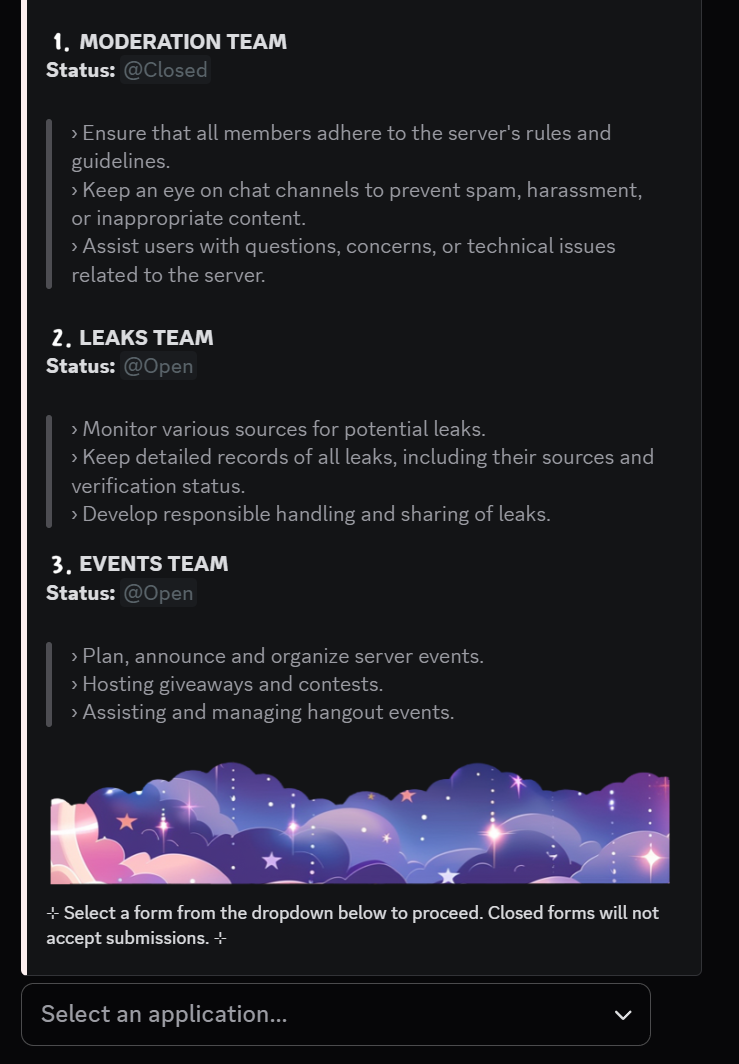
Applications let members apply for staff roles, partnerships, event positions, whitelists, or any structured request. Members start from a panel, answer questions in DMs, and staff review the finished submission in a chosen review channel.

dashboard setupformsDM wizardreview buttonsrecords
Applications preview
Open the dashboard and choose Applications.
Set the public panel appearance and default review channel.
Create forms, add questions, set role rules, and choose reviewer pings or accept roles.
Save and Post the applications panel in the channel where members should apply.

Panel setup

Panel appearance

The panel can use a title, description, color, author text, banner, thumbnail, author icon, footer icon, and fields. Premium servers can customize footer text and use advanced panel presentation through the Embed Builder with multiple embeds or containers.

Panel settings
Default review channelForms without their own review channel use this channel. Dropdown placeholderText shown on multi-embed application dropdowns. Limit is 150 characters. Post channelThe channel where Save and Post publishes the applications panel. Application windowHow long a member has to finish the DM flow. Range is 1 to 1440 minutes. User cooldownHow long a member must wait before applying again. Set 0 for no cooldown. Maximum is 90 days.

Forms

Limits and status

Free servers can create up to 4 application forms. Premium servers can create up to 25. Each form can be open or closed without deleting it.

Questions

Each form needs at least one question. Questions can be added, edited, removed, and moved. The dashboard question field allows up to 400 characters. Multiple-choice questions are supported and need at least 2 options. Naya allows up to 50 questions.

Routing and role rules
Review overrideSend one form to a different review channel. Ping rolesNotify the right reviewers when a submission arrives. Accept rolesRoles Naya gives when a reviewer accepts the application. Required rolesOnly members with these roles can apply. Required modeChoose whether members need any required role or all required roles. Restricted rolesMembers with these roles cannot apply to that form. Panel overrideOptional form-specific title and description shown on the panel. Panel hideHide a saved form from the public panel without deleting its configuration.

Review flow

Member DM flow

Naya sends the questions through DMs one at a time. Members can type cancel to stop. If Discord blocks DMs because of privacy settings, the member will need to allow server DMs before completing the application.

Review channel

Completed applications are posted as review messages with the member's answers. Keep review channels private to the people who should see applicant information. They are also posted on the dashboard, where you can easily view all the submitted past and present applications. You can also change the status of the applications from the dashboard, though no dm will be sent to the user.

Reviewer actions
AcceptMarks the application accepted, DMs the applicant, and grants accept roles if configured. DenyMarks the application denied and DMs the applicant. BlacklistBlocks the applicant from applying again. UnblacklistRemoves the application blacklist when staff choose to allow future applications.

Recommendations

Helpful setup habits

Use separate forms for separate purposes, keep questions short, set a private default review channel, and use ping roles only for teams that truly need alerts. Save and Post publishes the panel only after a post channel is selected. A form that takes 5 to 10 minutes to answer is usually more comfortable than a long interview in DM form.

automation module

Autoresponders

Autoresponders are custom trigger-based replies that can act like small custom commands, help prompts, role menus, daily rewards, or guided member tools. A good autoresponder saves staff from answering the same thing over and over.

dashboard setuptriggerscooldownsrewardscomponents
Autoresponders preview
Open the dashboard and choose Autoresponders.
Create a name, one or more triggers, a priority, cooldown, and send mode.
Add choices with text, DMs, embeds, rewards, role actions, buttons, links, or dropdowns.
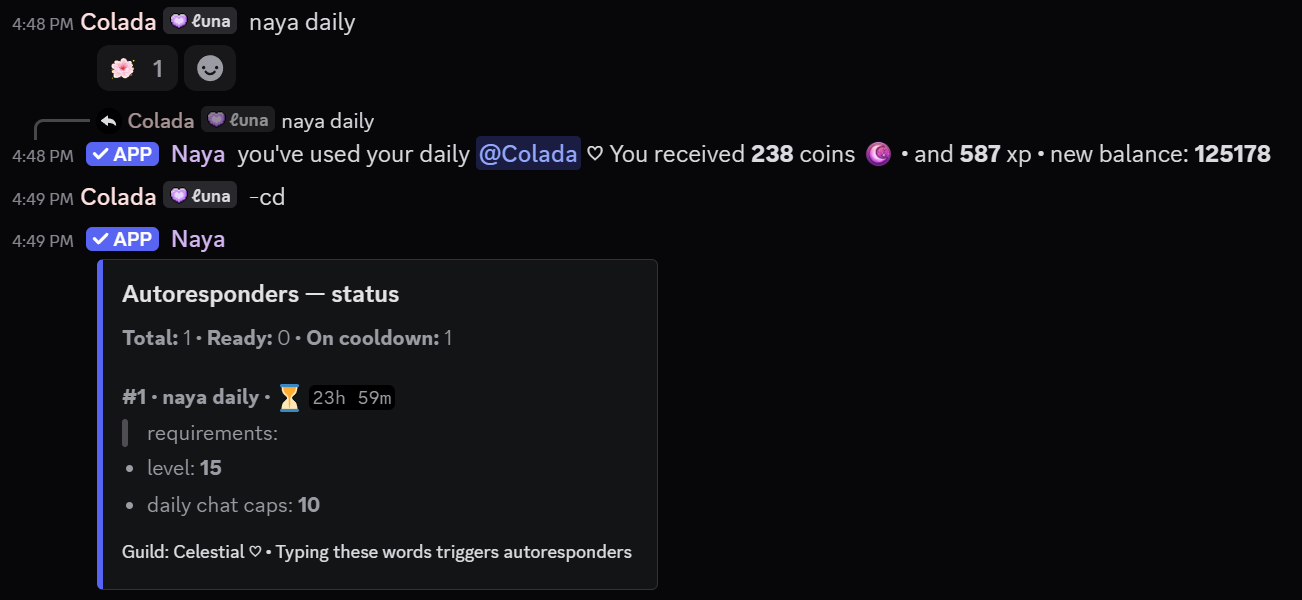
Save, test the trigger in chat, and use /cooldowns or -cd to check active user cooldowns.

Limits

Capacity
AutorespondersFree servers can have 4. Premium servers can have 500. TriggersEach autoresponder can have up to 8 triggers. ChoicesEach autoresponder can have up to 5 response choices. ComponentsEach choice can have up to 4 buttons, links, or dropdowns. Dropdown optionsEach dropdown can have up to 10 options.
Priority and matching

Triggers match at the start of a member's message. Lower priority numbers run first when more than one responder could match. Keep triggers at least a few characters long and specific enough to avoid accidental matches.

Options

Send modes
ReplySend the response in the channel. DMSend the response privately when Discord allows it. BothReply in channel and send a DM. NoneRun rewards, roles, reactions, or components without normal response text.
Choices and weights

Choices let one trigger send different possible responses. Use weights when one choice should be more common than another, such as several daily reward messages with different flavor text or rewards. For instance a rare gift card with an extremely small weight (or chance) of that choice happening like a gacha game. You can also confine the autoresponders to certain channels.

Requirements
Minimum levelMember must meet the level requirement. Daily chatsMember must meet the daily chat cap requirement. ReputationMember must have enough reputation. BloomsMember must have enough blooms. Required rolesMember must have the selected role requirement. Up to 5 roles can be used.
Rewards and actions
CoinsGrant a minimum to maximum currency amount. XPGrant a minimum to maximum XP amount. ItemsGrant an inventory item key and quantity range. Add rolesAdd configured roles when the response runs. Remove rolesRemove configured roles when the response runs. ReactionReact to the triggering message with an emoji.
Cooldowns

Cooldowns are per member and can be set in seconds, minutes, hours, or days. Members can run /cooldowns or -cd to see active autoresponder cooldowns in the server. You can also hide a responder from that cooldown list while keeping the responder active.

Examples

-daily

Use a one day cooldown, a friendly reply, and coin or XP rewards. Example reply: {user}, you claimed {reward_coins} {currency_text}. New balance: {user_balance_after}.

-booster daily

Use a required booster, VIP, or override role and a one day cooldown. Give a slightly better reward or a special DM message so boosters have a simple daily perk. Example reply: you've used your daily {mention}! you received {reward_item_qty} x {reward_item_key} and + {reward_coins} {currency_text} {currency_emoji} and {reward_xp} xp - new balance: {user_balance_after}~

-server help

Use send mode Both. Public reply: check your dms for a quick server guide! DM text can include rules, role links, introductions, and common channels. You can include buttons and/or dropdowns if you wish to help give them further details about your server.

Placeholders

Placeholders work in reply text, DM text, embed titles and descriptions, author and footer text, button and dropdown labels, and supported media URL fields.

Message and reward placeholders
{channel}Current channel {content}Triggering message content {currency_emoji}Server currency emoji {currency_text}Server currency name {user_balance}User balance before or loaded balance {user_balance_after}User balance after the reward {reward_coins}Coins granted {reward_xp}XP granted {reward_item_key}Item key granted {reward_item_qty}Item quantity granted
User placeholders
{user}Member mention {user_mention}Member mention {mention}Member mention {uid}Member mention {ping}Member mention {user_name}Username {username}Username {name}Username {user_tag}Display tag {user_id}User ID {user_avatar}Avatar URL {user_avatar_url}Avatar URL {user_default_avatar}Default avatar URL {user_default_avatar_url}Default avatar URL {user_global_name}Global display name {user_discrim}Discriminator {user_discriminator}Discriminator {user_nick}Server nickname {user_displayname}Display name {user_display_name}Display name {display_name}Display name {user_joindate}Server join date {user_createdate}Account creation date {user_displaycolor}Role color {user_display_color}Role color {user_boostsince}Boost start date
Member aliases
{member}Member mention {member_id}Member ID {member_name}Username {member_displayname}Display name {member_display_name}Display name {member_mention}Member mention {member_tag}Display tag {member_avatar}Avatar URL {member_avatar_url}Avatar URL {member_default_avatar}Default avatar URL {member_default_avatar_url}Default avatar URL {member_created_at}Account creation date {member_joined_at}Server join date {member_joined}Server join date {member_color}Role color {member_display_color}Role color {member.id}Member ID {member.name}Username {member.display_name}Display name {member.mention}Member mention {member.tag}Display tag {member.avatar_url}Avatar URL {member.default_avatar_url}Default avatar URL {member.created_at}Account creation date {member.joined_at}Server join date {user.id}User ID {user.name}Username {user.mention}User mention {user.avatar_url}Avatar URL
Server placeholders
{server_name}Server name {server_id}Server ID {server_membercount}Total member count {server_membercount_ordinal}Member count with ordinal text {server_membercount_nobots}Human member count {server_membercount_nobots_ordinal}Human count with ordinal text {server_botcount}Bot count {server_botcount_ordinal}Bot count with ordinal text {server_icon}Server icon URL {server_icon_url}Server icon URL {server_banner}Server banner URL {server_banner_url}Server banner URL {server_splash}Server splash URL {server_splash_url}Server splash URL {server_rolecount}Role count {server_channelcount}Channel count {server_owner}Owner mention {server_owner_id}Owner ID {server_createdate}Server creation date {server_randommember}Random cached member mention {server_randommember_tag}Random cached member tag {server_randommember_name}Random cached member name {server_randommember_id}Random cached member ID {server_randommember_nobots}Random cached non-bot mention {server_randommember_nobots_tag}Random cached non-bot tag {server_randommember_nobots_name}Random cached non-bot name {server_randommember_nobots_id}Random cached non-bot ID
Guild aliases
{guild}Server name {guild_id}Server ID {guild_name}Server name {guild_member_count}Total member count {guild_membercount}Total member count {guild_icon}Server icon URL {guild_icon_url}Server icon URL {guild_banner}Server banner URL {guild_banner_url}Server banner URL {guild_splash}Server splash URL {guild_splash_url}Server splash URL {guild_role_count}Role count {guild_channel_count}Channel count {guild_owner}Owner mention {guild_owner_id}Owner ID {guild_created_at}Server creation date {guild_boost_level}Boost tier {guild_boost_count}Boost count {guild.id}Server ID {guild.name}Server name {guild.member_count}Total member count {guild.icon_url}Server icon URL {guild.banner_url}Server banner URL {guild.splash_url}Server splash URL
Boost and event placeholders
{server_boostlevel}Boost tier {server_boostcount}Boost count {server_nextboostlevel}Next boost tier {server_nextboostlevel_required}Total boosts needed for next tier {server_nextboostlevel_until_required}Additional boosts needed {event.type}Event type {event_type}Event type
community module

Hugs & Bonks

Hugs and bonks are lightweight social commands with server default image pools, personal image sets, and friendly stats. They are simple by design: members can use them right away, while staff can keep the server image pool appropriate.

/hug/bonkserver defaultspersonal imagesstats
Hugs and bonks preview
Open the dashboard and choose Hugs & Bonks to manage this server's default image pools.
Add direct image URLs for approved hug and bonk images, then preview them before saving.
Members can use /hug and /bonk in server channels.
Members can manage personal images with /hugs-settings if they want their own flavor.

Commands

Member commands
/hugHug another member. If no user is provided, the member hugs themself. /bonkBonk another member. Members cannot bonk themselves. /hugs-settingsOpen, view, or manage personal hug and bonk image sets. /hugs-defaultOpen, view, or manage server hug and bonk image sets.
Cooldowns

/hug and /bonk allow 3 uses per 30 seconds per member. Naya keeps track of each member's hugs and bonks including in the /leaderboard and in the guild board, if one is set in the server.

Image pools

Naya defaults

When a member uses a hug or bonk, Naya checks the member's personal image set first only if custom hugs are enabled and the member is not blacklisted by having a blacklisted role from /main-settings. If personal images are unavailable, Naya uses the server default image set. If the server default set is empty or reset, she uses Naya's global default hugs and bonks images.

Server defaults

These are the hugs and bonks admins choose for the server from the dashboard or by using /hugs-default. Resetting hugs does not reset bonks, and resetting bonks does not reset hugs. Admins can also use /main-settings to disable custom hugs and bonks so members cannot have their own hugs and bonks images shown on the server, and only server or naya global defaults are shown.

Personal sets

Personal image sets are global to the user. They let a member use their preferred hug or bonk images across servers where Naya is available and custom images are allowed. In /main-settings, admins can choose a blacklist role so members with that role will not have their personal hug or bonk sets shown.

Limits

Image limits
Free server defaultsUp to 12 hug images and 12 bonk images. Premium server defaultsUp to 200 hug images and 200 bonk images. Free personal setsUp to 12 personal hug images and 12 personal bonk images. Premium personal setsUp to 200 personal hug images and 200 personal bonk images.

Recommendations

Keep it comfortable

Use direct, stable image URLs, preview every image before saving, and keep server defaults appropriate for the whole community. If a link previews incorrectly, replace it with a Discord copied image link. Hugs and bonks work best as light social texture, with stats as a fun extra instead of the whole point.

progression module

Quests

Quests give members clear goals they can accept, progress through naturally, and finish for rewards such as XP, coins, reputation, items, or a role.

dashboard setup/questsreputationrepeatable
Quests preview
Open the dashboard and choose Quests.
Create a quest name, status, repeat setting, objective, and goal amount.
Add optional requirements and rewards, then save the quest.
Members use /quests to view, accept, progress, and finish quests.

Limits

Quest capacity

Free servers can have up to 2 quests. Premium servers can have up to 500 quests.

Repeatable and one-time quests

Repeatable quests can be completed multiple times and should usually have a cooldown. Non-repeatable quests can only be completed once by each member.

Objectives

How objectives work

Naya records the member's current objective count when they accept the quest. The quest completes when that count increases by the goal amount.

Objective types
messagesTracked messages, usually from chat capping channels. xpTotal XP gained after accepting. levelsLevels gained after accepting. currencyCurrency gained after accepting. repReputation gained after accepting. bloomsBlooms gained after accepting. chatcapsChat caps reached after accepting. capstreakChat cap streak progress after accepting.
Objective text

Objective text is the member-facing explanation, such as "Send 10 messages". Keep it short and make sure it matches the selected objective type and goal amount.

Requirements

Accept requirements
Min levelMember must be at or above this level. Min reputationMember must have enough reputation. Min bloomsMember must have enough total blooms. Min messagesMember must have enough tracked messages. Min currencyMember must have enough currency. Min chat capsMember must have enough chat caps. Min cap streakMember must have enough cap streak progress. Required roleMember must have the selected role.

Rewards

Reward types
XPAdds XP when the quest is finished. CoinsAdds server currency when the quest is finished. RepAdds reputation when the quest is finished. ItemsGives one or more inventory item rewards by item key and quantity. Reward roleGives one selected role when Naya has permission and role hierarchy.
Reward balance

Use larger rewards for one-time quests and smaller rewards for repeatable quests. Repeatable quests are easier to balance when they have a clear cooldown.

Editing quests

Accepted quests keep their version

If a member accepted a quest before you edited it, that accepted quest keeps the older objective version for that member. If you are changing the core goal, it is often cleaner to delete the quest and create a new one.

Recommendations

Keep quest names and objective text understandable at a glance. Let quests support normal server activity instead of pushing members into behavior they would not otherwise do.

dashboard module

Welcome Messages

Use the dashboard Welcome module to configure join messages, farewell messages, boost messages, and member DMs. Most servers can set this up in a few minutes: choose the event, write the message, preview it, and save.

dashboard setupjoinsleavesboostsDMs
Open the dashboard and choose Welcome.
Select the message card you want to edit: welcome, farewell, boost, welcome DM, or farewell DM.
Choose a channel for public messages, then edit the text, embeds, media, bot handling, or webhook identity.
Use preview or test message before saving.

Message types

Welcome message

Posts in a selected channel when a member joins. Use this for greeting text, rules links, role instructions, or a short server introduction.

Farewell message

Posts when a member leaves. Keep this short; these messages are most useful for staff awareness or community continuity.

Boost message

Posts when Discord sends a server boost event that Naya can see. For boost event messages to work, enable Server Settings > Engagement > Send messages when someone boosts this server, and make sure Naya can view that channel.

Welcome and farewell DMs

Sends private messages when possible. Some users block server DMs, so public setup should not depend on DMs being delivered every time.

Message options

Random messages

Each welcome message type can hold multiple saved messages. Naya chooses one at random when the event happens. Free servers can save up to 3 messages per type, and premium servers can save up to 10.

Rainbow embed color

Set the embed color to random or enable Rainbow in the dashboard to make Naya choose a new embed color for each sent message.

Bot messages

Welcome and farewell cards can allow or ignore bot accounts. Leave bot messages off for normal community welcomes; enable them only when your server intentionally wants bot joins or bot leaves announced.

Placeholders

Placeholders work in welcome text and embeds. The dashboard preview uses sample values; Naya replaces them with real server and member data when the event happens.

User placeholders
{user}Member mention {user_mention}Member mention {mention}Member mention {uid}Member mention {ping}Member mention {user_name}Username {username}Username {name}Username {user_tag}Display tag {user_id}User ID {user_avatar}Avatar URL {user_avatar_url}Avatar URL {user_default_avatar}Default avatar URL {user_default_avatar_url}Default avatar URL {user_global_name}Global display name {user_discrim}Discriminator {user_discriminator}Discriminator {user_nick}Server nickname {user_displayname}Display name {user_display_name}Display name {display_name}Display name {user_joindate}Server join date {user_createdate}Account creation date {user_displaycolor}Role color {user_display_color}Role color {user_boostsince}Boost start date
Server placeholders
{server_name}Server name {server_id}Server ID {server_membercount}Total member count {server_membercount_ordinal}Member count with ordinal text {server_membercount_nobots}Human member count {server_membercount_nobots_ordinal}Human count with ordinal text {server_botcount}Bot count {server_botcount_ordinal}Bot count with ordinal text {server_icon}Server icon URL {server_icon_url}Server icon URL {server_banner}Server banner URL {server_banner_url}Server banner URL {server_splash}Server splash URL {server_splash_url}Server splash URL {server_rolecount}Role count {server_channelcount}Channel count {server_owner}Owner mention {server_owner_id}Owner ID {server_createdate}Server creation date {server_randommember}Random cached member mention {server_randommember_tag}Random cached member tag {server_randommember_name}Random cached member name {server_randommember_id}Random cached member ID {server_randommember_nobots}Random cached non-bot mention {server_randommember_nobots_tag}Random cached non-bot tag {server_randommember_nobots_name}Random cached non-bot name {server_randommember_nobots_id}Random cached non-bot ID
Boost and event placeholders
{server_boostlevel}Current boost tier {server_boostcount}Current boost count {server_nextboostlevel}Next boost tier {server_nextboostlevel_required}Total boosts needed for next tier {server_nextboostlevel_until_required}Additional boosts needed for next tier {event.type}Event type {event_type}Event type
Dotted aliases
{member.id}Member ID {member.name}Username {member.display_name}Display name {member.mention}Member mention {member.tag}Display tag {member.avatar_url}Avatar URL {member.default_avatar_url}Default avatar URL {member.created_at}Account creation date {member.joined_at}Server join date {user.id}User ID {user.name}Username {user.mention}User mention {user.avatar_url}Avatar URL {guild.id}Server ID {guild.name}Server name {guild.member_count}Total member count {guild.icon_url}Server icon URL {guild.banner_url}Server banner URL {guild.splash_url}Server splash URL

Troubleshooting

Message did not post

Check that a public channel is selected and that Naya can view the channel, send messages, embed links, and use webhooks if webhook identity is enabled.

DM did not send

Discord may block DMs depending on the member's privacy settings. Naya also has to share a mutual server with the user; otherwise Discord does not allow her to send that DM.

booster module

Booster Perks

Booster Perks lets members who boost your server create their own custom role. Naya places each custom role directly above the Discord booster role and keeps the role cleaned up when booster access ends.

/booster-settings/boosterperkscustom rolesgiftsdaily rewards
Run /booster-settings to open the admin settings panel.
Enable booster perks and choose whether an override role should also count as booster access.
Configure logs, gifts, daily claims, role hoist, role icons, write limits, and the public perks appearance.
Members use /boosterperks to manage their own allowed perks.

Admin settings

Main controls
Booster perksTurns the system on or off. Override roleTreats members with that role as though they were boosters. LogsRecords booster role edits, gifts, and daily claims. Log channelChooses where booster perk logs are sent.
Role controls
Role hoistLets new booster roles display separately in the member list. Role iconsAllows boosters to add or remove role icons when Discord supports them. User write limitLimits how many role edits one booster can make per day. Server write limitLimits total booster role edits across the server per day.
Rewards and presentation
GiftsAllows boosters to share their custom role with selected members. Gift limitControls how many gift slots each booster can use. Daily claimsLets eligible boosters claim configured currency, XP, or items once per day. Perks embedCustomizes the member-facing /boosterperks panel with message text, images, and footer fields.

Custom booster roles

What boosters can edit

Depending on your settings, boosters can rename their role, choose a color, add or remove a role icon, and preview changes before applying them. This can all be done by simply running the /boosterperks command.

Role position

Naya automatically places each custom booster role right above the Discord booster role. Make sure Naya's highest role is above the booster role so she can create, move, and edit the custom roles.

Automatic cleanup

Naya automatically deletes a member's custom booster role when the member leaves the server, stops boosting, or loses the configured override role.

Limits and safety

Daily write limits protect the server from excessive role edits. Discord allows up to 300 roles in a server, but most servers do not receive enough boosts for this to become a practical issue. Keep logs enabled if staff want an audit trail of role changes.

Role gifts

Gifting lets a booster share access to their custom booster role with selected members. Admins control whether gifts are enabled and how many gift slots each booster receives.

/boostergift viewView active role gifts.
/boostergift returnReturn a gifted role slot.
/boostergift removeRemove a gift when permitted.

Daily claims

Daily claims can grant configured currency, XP, or item rewards to eligible boosters. Keep rewards modest so booster claims feel useful without becoming the main economy source.

Premium notes

Premium appearance controls Premium

Premium servers can use richer booster perks presentation, including customized public perk embeds, media, and change gift limits.

Recommended staff setup

Enable logs, set a clear override role if needed, keep role write limits on, and post a short explanation telling boosters to use /boosterperks. For boost event logs to work, enable Server Settings > Engagement > Send messages when someone boosts this server, and make sure Naya can view that channel.

channel utility

Stickies

Stickies keep an important message near the bottom of a channel by reposting it as conversation continues. Use them for rules, resource links, event reminders, or instructions members need to see often.

dashboard setupchannelsembedswebhooks
Open the dashboard and choose Stickies.
Add the channel that should have a sticky. Each channel can have one sticky.
Write plain message content, build an embed, or use both.
Preview, save, and post the sticky so Naya can keep it visible.

Content and delivery

Plain message

Best for short reminders, resource links, or channel instructions. Plain content appears above the embed when both are used.

Embed

Best for rules, schedules, frequently used links, or multi-part information. You can set title, description, color, author text, footer text, thumbnail, banner, and icon URLs.

Webhook identity Premium

Premium servers can send stickies through a custom webhook username and avatar. Free servers send stickies as normal Naya bot messages.

Limits and safety

Server limits

Free servers can create up to 4 stickies. Premium servers can create up to 300 stickies.

Use them intentionally

Stickies are most helpful when they answer repeated questions. Too many persistent posts can make active channels feel noisy, so reserve them for information members genuinely need.

Required permissions

Naya needs permission to view the channel, send messages, embed links, manage messages for clean reposting, and manage webhooks if webhook identity is enabled.

Dashboard setup

Save or save and post

Save stores the sticky settings without posting immediately. Save and Post stores the settings and asks Naya to place the sticky in the selected channel.

Refresh after changes

If you edit a sticky that is already posted, save it and refresh or post again so the visible channel copy matches the dashboard version.

Troubleshooting

Sticky did not post

Check that the channel still exists, the sticky has content or embed text, and Naya can view the channel, send messages, and embed links.

Webhook identity did not apply

Webhook identity requires premium and a valid webhook username or avatar URL. Naya also needs manage webhooks permission in that channel.

Sticky stopped refreshing

If something goes wrong, such as missing permissions or an invalid channel, Naya may disable the sticky so it does not keep failing. Fix the issue, enable the sticky again on the dashboard, then save and post it again.

community rewards

Giveaways

Giveaways create timed prize posts with entry requirements, role rules, bonus entries, winner rewards, rerolls, and optional custom messages.

/giveawayrequirementswinnersroles
Use /giveaway to enter the prize, winner count, duration, and optional host.
Open the giveaway settings panel to add requirements, bonus entries, messages, and end actions.
Choose the channel and post the giveaway.
Use /gedit, /gend, or /greroll when a posted giveaway needs staff action.

Limits and access

Active giveaway limits

Free servers can run up to 6 active giveaways at the same time. Premium servers can run up to 25 active giveaways.

Duration limits

Free server giveaways can last up to 30 days. Premium server giveaways can last up to 180 days. If a giveaway needs more time, use /gedit before it ends and extend the duration as needed.

Giveaway manager roles

Admins can use giveaway commands by default. If you want trusted non-admin roles to manage giveaways, add those roles in /main-settings.

Entry rules

Role requirements
Required rolesRequire members to have selected roles before joining. Required role modeChoose whether members need all selected roles or any selected role. Blacklisted rolesPrevent selected roles from joining. Bypass rolesBypass only the required-role checks. They do not bypass blacklist, coins, level, or message requirements.
Progress requirements
Required coinsMinimum server currency required to join. Required levelMinimum level required to join. Total messagesMinimum tracked lifetime messages required to join. Weekly messagesMinimum tracked weekly messages required to join.
Required server

A giveaway can require members to be in another Discord server. Naya verifies this from server membership cache, so the required server must also have Naya in it.

If the required server is on a different cluster, there can be a short delay when the cache expires. A member may be told they are not in the required server even after joining; if this happens, wait about a minute and try joining the giveaway again.

Options and rewards

Entries and bonus entries

Bonus roles can add extra entries for members who have those roles. You can choose whether all bonus roles stack together or whether Naya should only use the highest bonus.

Winner rewards

Naya can assign up to 10 selected winner reward roles when the giveaway ends. She needs permission and a high enough role to assign them.

Custom messages
Join promptText shown on the giveaway post above the details. Join successMessage shown to a member after they join. Custom announcementWinner announcement sent when the giveaway ends. Winner DMOptional DM sent to winners. DM creatorOptional DM to the giveaway creator when the giveaway ends.
End actions

Giveaways can create no thread, a public thread, or a private thread when they end. Threads are best for giveaways where staff need winner follow-up.

Winner checks

Fresh role checks

When a giveaway ends naturally, Naya checks roles again near the end so winners are based on fresh eligibility. Role data is refreshed up to about 30 seconds before the giveaway ends.

Required server checks at end

Naya also checks whether entrants are still in the required server before they can win. If the required-server check takes too long after multiple attempts, Naya may draw winners without that final required-server filter so the giveaway can still finish during cluster or cache issues.

Manual end and reroll behavior

/gend and /greroll may pull winners who are no longer in the required server. Those members still had to pass the required-server check when they originally joined the giveaway.

Commands

/giveawayCreate and post a new giveaway with prize, winners, duration, host, settings, and channel.
/geditEdit an existing giveaway before it ends, including extending its duration.
/gendEnd a giveaway early or if for some reason naya failed to end it, you can use this to end it manually.
/grerollReroll winners for an ended giveaway. You can do this for up to 90 days after giveaway ends.
content module

Embeds

Embeds is Naya's message builder for polished Discord posts. Use it to create regular embeds, component-style containers, buttons, dropdowns, role menus, verification panels, ticket or application entry points, reusable builder links, and JSON payloads.

regular embeds containers buttons dropdowns builder links
Open the dashboard and choose Embeds.
Choose Regular Embeds or Components / Containers.
Add message text, embed fields, media, buttons, dropdowns, or live Naya actions.
Generate a builder link for backup, then post with Naya or premium webhook delivery.

Builder Modes

Regular Embeds

Regular Embeds create classic Discord embed messages. They are best for rules, server guides, staff announcements, shop panels, event summaries, role menus, ticket panels, and any message that should look clean without needing a complex layout.

Components / Containers

Containers create newer component-style layouts with text blocks, media, dividers, sections, accessories, and action rows. Use them when you need a richer layout than a normal embed, such as a structured guide, multi-section panel, or visual menu.

Live preview and samples

The preview updates as you edit. Samples are available as starting points, which is faster than rebuilding common layouts from scratch. Always preview on a narrow window too, because Discord users often read panels on mobile.

Fields

Regular embed fields
Message textOptional text outside the embed. Max 2000 characters. TitleEmbed title. Max 256 characters. DescriptionMain embed body. Max 4096 characters. ColorEmbed accent color. AuthorOptional author/header text. Max 256 characters. Author iconOptional image URL beside the author text. Banner imageLarge image inside the embed. ThumbnailSmall image near the top right. FooterOptional bottom text. Max 2048 characters. Footer iconOptional image URL beside the footer. FieldsUp to 25 name and value blocks per embed. Each can be inline or full width.
Container fields
Accent colorColor used by the container layout. Top bannerOptional image at the top. AuthorOptional text and icon for the top of the container. Text blocksShort content sections for rules, guides, or descriptions. SectionsText blocks with optional accessory buttons or images. DividersSeparators between sections. Bottom bannerOptional image at the bottom. FooterOptional text and icon for the bottom.
Image URL advice

Use direct image URLs that start with http:// or https://. If a site gives a preview page instead of the raw image file, Discord may not render it. Uploading the image to Discord and copying the image link is often the fastest reliable path.

Actions

Actions turn a message into something members can click. They can be buttons or dropdown options, depending on the layout.

Action types
LinkOpen a URL, such as rules, a website, a form, or an external guide. Interactive replySend a private text reply when clicked. Reply embedSend a private embed reply with title, description, color, footer, thumbnail, or image. Add roleGive one role to the member. Remove roleRemove one role from the member. Toggle roleGive the role if missing, or remove it if already owned. Toggle all rolesKeep one role from a role group active and remove the other roles in that group. VerificationAdd and remove configured roles after a member clicks. Naya CommandsCreate live ticket or application dropdowns. Premium Custom Item ActionRun a server currency custom item action from a button or dropdown. Premium
Role and verification safety

Naya needs Manage Roles, and her highest role must be above every role she gives or removes. Verification actions will not grant or remove dangerous Administrator roles. If a role action fails, check role order first.

Live ticket and application dropdowns

Naya Commands dropdowns can show the server's ticket types or application forms. It allows you to post a completely customized panel. However, note that when updating ticket types or application forms you will need to repost it to update.

Posting

Bot Post

Bot Post sends the message normally as Naya in the selected channel. This is the standard delivery method and is available to free servers.

Webhook Post

Custom Webhook mode lets Naya post with a custom username and avatar. Discord Webhook mode uses a pasted Discord webhook URL.

Editing webhook messages

To edit an existing Discord webhook message, use Discord Webhook mode with the webhook URL and the numeric webhook message ID. Editing Naya-created custom webhook posts is not the same path, so use Discord Webhook mode when editability matters.

Forum channels

Forum channels need an existing forum post or thread target. Paste the thread ID, message link, or exact active thread name. If a thread name is not found, paste the ID instead.

Discord Limits

The dashboard catches common Discord limits before posting. If a post fails because of limits, shorten text, split the message, or reduce actions.

Common limits
Message text2000 characters. Embeds per message10 embeds. Total embed text6000 characters across all embeds. Embed title256 characters. Embed description4096 characters. Fields per embed25 fields. Field name256 characters. Field value1024 characters. Footer text2048 characters. Author name256 characters. Action rows5 rows per message. Buttons per row5 buttons. Dropdowns per row1 dropdown. Dropdown options25 options. Button label80 characters. URL fields512 characters.
Mobile readability

Discord panels are often read on mobile. Keep button labels short, avoid crowded field names, and use dropdowns when a role menu has more than a few choices.

Useful examples

Rules or server guide panel

Use a Regular Embed with a short title, a clear description, and fields for each important rule or channel. Add a link button to the full rules page if the server has one. Keep the embed itself short enough that members actually read it.

Color role menu

Use dropdown options or buttons with Toggle All Roles. Put every color role in the same group so choosing one color removes the other color roles first. Make sure Naya's role is above every color role.

Verification panel

Use a button with Verification. Configure roles to add, roles to remove, and a private success reply. This is useful for member screening, rules acceptance, or unlocking the main server after a simple click.

Ticket or application entry panel

Use a Naya Commands dropdown for tickets or applications. This keeps the panel current with the configured ticket types or application forms, instead of manually recreating every option in the embed builder.

Premium item action panel

Premium servers can connect custom item actions to buttons or dropdowns. This is useful for paid panels such as suggestions, confession forms, top-up forms, custom reward claims, gacha boxes, or seasonal perks.

Reusable announcement template

Build the announcement once, generate a builder link, and save that link somewhere staff can find. Next time, load the link, change the date, image, and details, then post again. This prevents every announcement from being rebuilt by hand.

Troubleshooting

The message does not post

First see if the emojis in buttons and dropdowns were valid. Make sure Naya can view the channel, send messages, embed links, use external emojis, and manage webhooks if webhook posting is selected. Also check that the message does not exceed Discord limits.

Images do not load

Use a direct image link. Some sites provide a webpage link instead of an image file. If needed, upload the image to Discord, copy the image link, and do not delete the source Discord message afterward.

Role buttons fail

Check Manage Roles permission and role order. Naya cannot manage roles that are equal to or higher than her highest role.

Ticket or application dropdown is empty

Check that the server has ticket types or application forms configured and available. Live dropdowns can only show what exists for that server.

A builder link will not load

Make sure the full builder link was copied. Older or incomplete links may not restore correctly.

Recommendations

One purpose per message

Do not combine rules, tickets, role menus, and announcements in one panel unless they truly belong together. A focused message gets fewer support questions.

Use dropdowns for long menus

Buttons are good for 1 to 5 clear choices. Dropdowns are better for longer menus, role lists, tickets, applications, and anything where labels need more space.

Save complex work

Generate a builder link before posting anything with actions. It is much easier to edit later, and it gives staff a reliable backup.

reference

Command Reference

A compact reference for Naya's public-facing slash commands and the main prefix-style staff helpers still present in the bot.

slash commandspanelsutilities

Setup notes

Use the dashboard for normal module setup: Currency, Leveling, Pets, Garden, Co-op, Guildboard, Events, Tickets, Applications, Autoresponders, Stickies, and Hugs & Bonks.

Allowed setup commands
/main-settingsServer-wide access, safety, blacklist, and prefix behavior.
/booster-settingsBooster Perks admin setup for custom roles, gifts, rewards, logs, and limits.

Member Commands

/helpOpen Naya help.
/voteVoting info and streak tracking.
/premiumclaimClaim and manage premium server slots.
/servershopBrowse the server shop.
/inventoryView owned server items.
/consumeUse a consumable item.
/discardDiscard an inventory item.
/rankView or customize a rank card.
/leaderboardView server leaderboards.
/serverprofileView or customize a server profile.
/petView and interact with a server pet.
/questsView, accept, and finish quests.
/minigamePlay a configured minigame.
/cooldownsView autoresponder cooldowns.
/hugSend a hug.
/bonkSend a bonk.
/boosterperksOpen booster perk controls.

Staff Utilities

/giveGive currency, XP, or items when permitted.
/removeRemove currency, XP, or items when permitted.
/setSet member values such as currency, XP, level, pet name, or related server stats.
/clearleaderboardClear leaderboard data when permitted.
/rankdefaultSet the default server rank card wallpaper.
/giveawayCreate a giveaway.
/geditEdit a giveaway.
/gendEnd a giveaway early.
/grerollReroll giveaway winners.